
Jump ahead
- Contracts & Payments pages
- Permissions
✋ Heads up! Before you begin, make sure you have downloaded the Passare mobile app.
💡 Contract and payment information is read-only from the mobile app. To make changes, log in to the web version of Passare.
Contracts & Payments pages
Open a case in the Passare mobile app. Tap the ☰ menu icon in the top-left corner of the screen (or swipe right from the left edge) to open the case drawer menu. 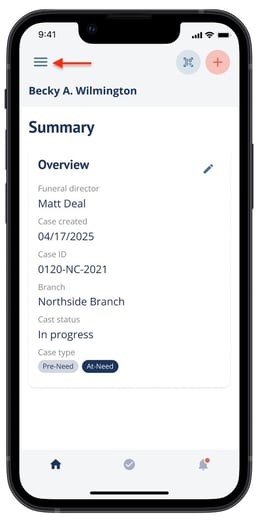
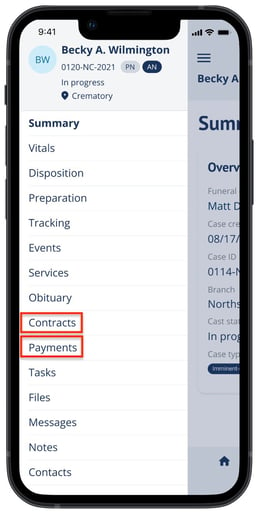
Tap Contracts or Payments to view the respective page.
Contracts
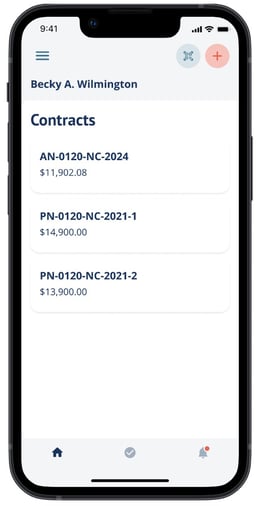
The Contracts page displays a card for each contract associated with the case, ordered from newest to oldest. Each card shows Contract ID and Contract Total
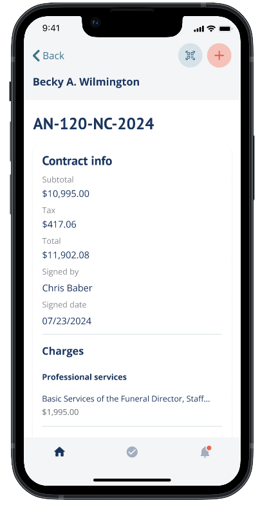
Tap on a contract card to view its details. You'll see the following information
- Subtotal
- Tax
- Total
- Signed by
- Signed date
- A full list of line items (Goods & Services)
Payments
The Payments page displays a card for each contract's current balance.
Tap on a balance card to view payment history.
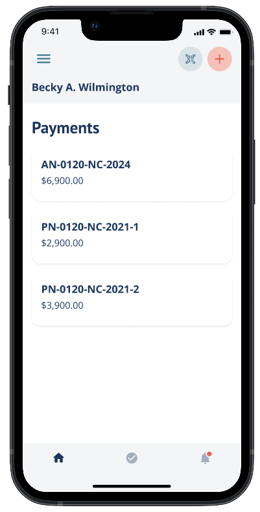
You'll see the full payment history, including individual transaction details for that contract.
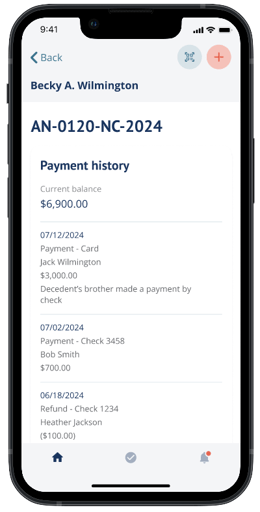
Permissions
To view Contracts and Payments in the mobile app, the correct permissions must be enabled in Role Manager on the web version of Passare.
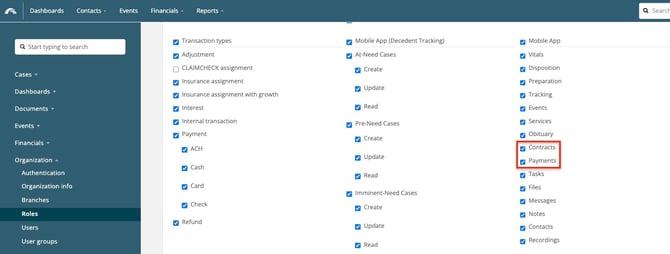
For Contracts:
- Navigate to Role Manager → Mobile App section → enable the Contracts checkbox.
- The role must also have Goods & Services permissions enabled for the applicable case type.
For Payments:
- Navigate to Role Manager → Mobile App section → enable the Payments checkbox.
- The role must also have Payments & Adjustments permissions enabled for the applicable case type.
If you don't see Contracts or Payments in your case menu, check with your account administrator to confirm that these permissions are enabled for your role.
Need help? Email us at support@passare.com or call (800) 692-5111.