
📣 This feature is currently available only to Passare Premium customers. To get set up, contact your Premium support representative, or email julie.hofmann@passare.com or madison.scott@passare.com to upgrade your account.
Jump ahead
⚠️ IMPORTANT: AI-generated suggestions may be incorrect or incomplete. Always review a suggestion and its supporting transcript before applying it to a case.
Getting started
🖐️ You will need access to AI Notetaker and AI Assistant to use this feature.
Record an arrangement conversation with AI Notetaker in Passare Mobile.
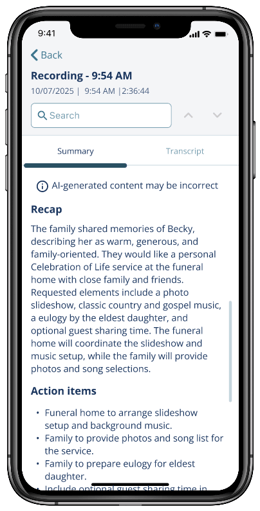
Once the recording has processed, Passare's AI Assistant analyzes the transcript and provides suggestions based on the discussion.
You can review each suggestion, see the related transcript excerpt, make changes if needed, and choose whether to add it to the case. Suggestions can include:
|
If the conversation includes… |
AI Suggestions may propose… |
|
Information about the decedent |
Updates to Vitals |
|
Details about services, viewings, or gravesides |
A funeral event or appointment |
|
Music, flowers, printed materials, seating, vehicles, or other service details |
A Funeral Options note |
|
Follow-up work |
A checklist task |
|
Family members, informants, or other contacts |
A contact in Family & Friends |
|
General case context or important background |
A case note |
NOTE: AI Suggestions only proposes changes. It does not automatically update the case.
Review AI Suggestions
You can review suggestions from the relevant case page or from the AI Assistant card in the case sidebar.
Review suggestions on a case page
Open the case in Passare and go to the relevant page, such as Vitals, Funeral Options, Family & Friends, Notes, or Checklists. Find the AI Suggestions section.
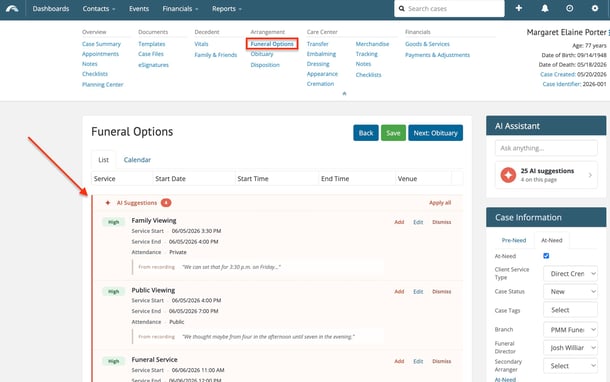
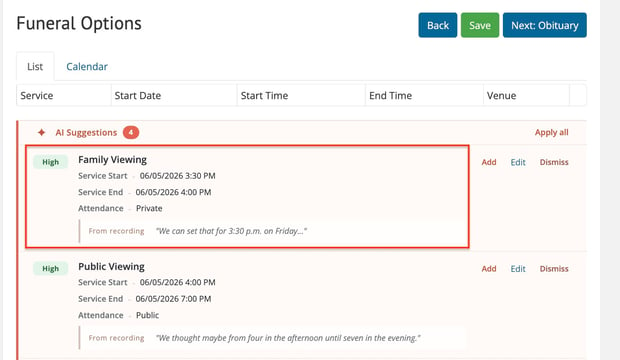
Review the suggested updates, confidence level, and transcript excerpt.
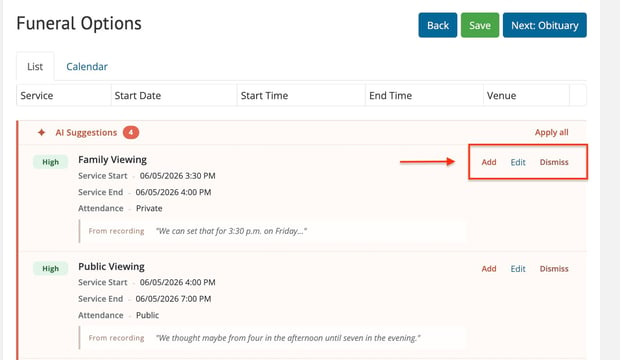
Select one of the following actions:
• Add the suggestion to the case.
• Edit to update the suggested information before applying it.
• Dismiss to remove the suggestion without changing the case.
Review suggestions from the AI Assistant card
Open the case in Passare. Click the AI Suggestions card under AI Assistant in the case sidebar.
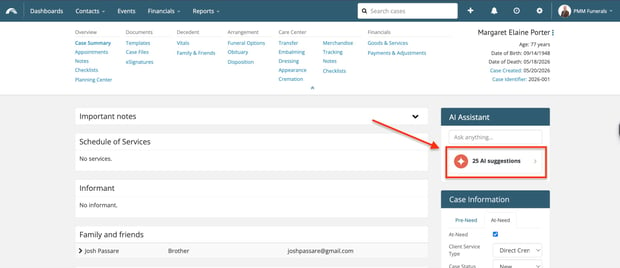
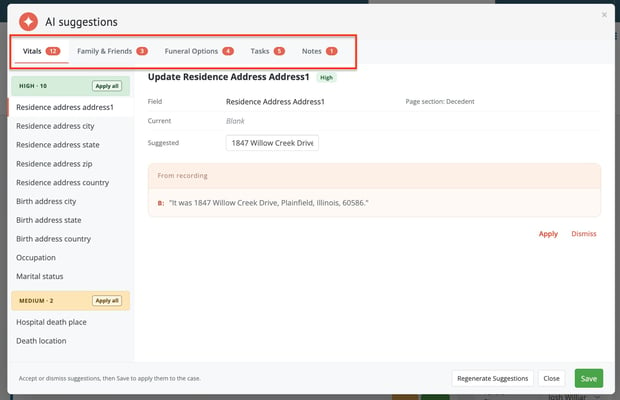
Review suggestions by category:
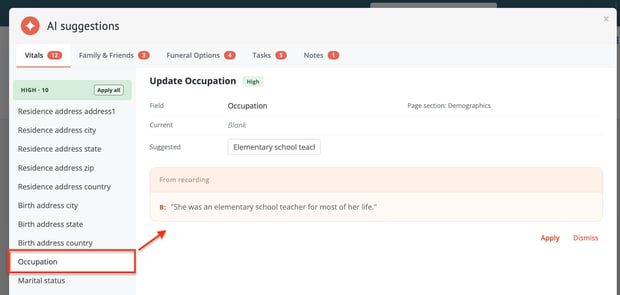
Select a suggestion to review its details and the related transcript excerpt.
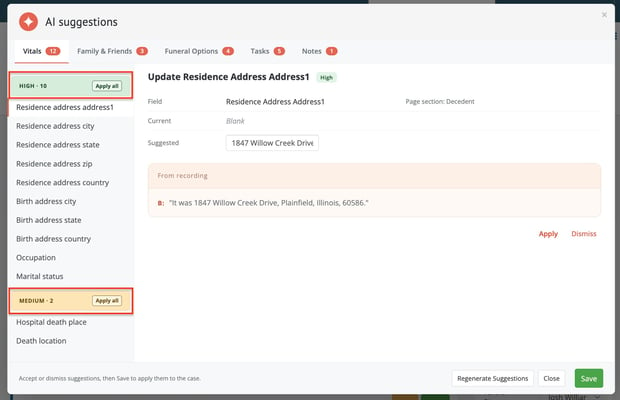
Suggestions are organized by confidence level: High, Medium, or Low. Confidence helps you prioritize review, but you should verify every suggestion before applying it.
Apply or edit a suggestion
Before applying a suggestion, review the proposed update and the transcript excerpt that supports it.
Make any necessary edits to the suggested information before adding it to the case.
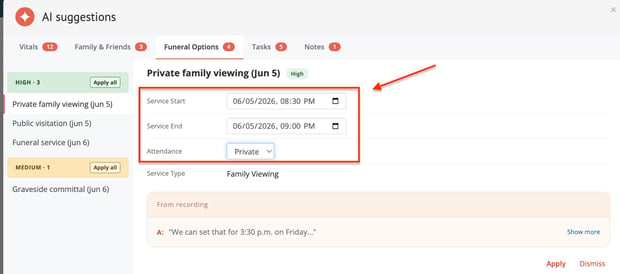
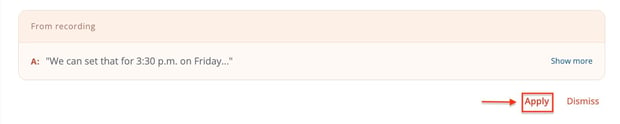
Select Apply to accept the suggestion.
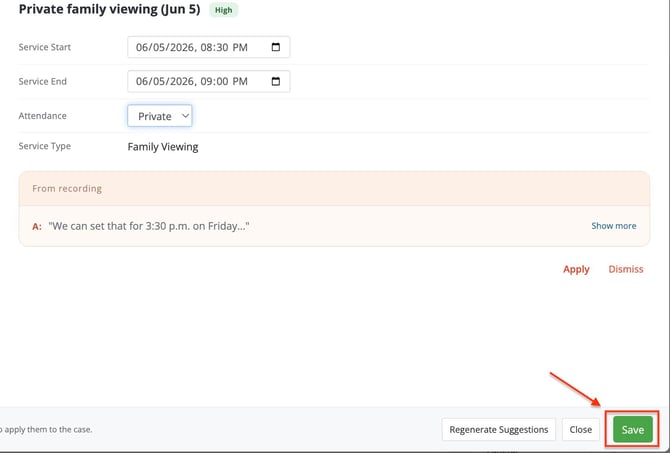
Once you've applied the suggestions, click Save.
When you apply a suggestion, Passare adds or updates the relevant case fields. For example, it may create a note, contact, checklist task, event, or appointment.
Dismiss or undo a suggestion
Select Dismiss if a suggestion is not correct or is not needed.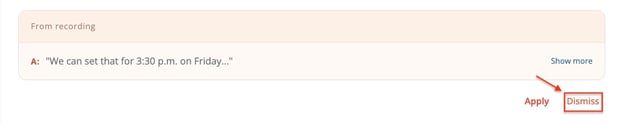
If you dismiss a suggestion by mistake, select Undo to restore it.

FAQs
Why a suggestion may not appear
You may not see suggestions if:
• The recording, transcript, or suggestion processing is not complete.
• The conversation did not contain information that can be turned into a supported case update.
• You do not have AI Assistant access or permission to edit the case.
• A checklist task cannot be matched to an existing checklist on the case.
• Required information for a suggested contact or event is missing.
Tips for reviewing suggestions
• Use the transcript excerpt to confirm what was discussed.
• Treat confidence levels as a guide, not a substitute for review.
• Edit suggestions when the proposed wording or detail needs adjustment.
• Dismiss duplicate, outdated, or unnecessary suggestions.
Need more information?
Need help? Email us at support@passare.com or call (800) 692-5111.