
Jump to:
- Roles & Settings
- Invoices page, Invoices summary, & invoice status
- Download, search, and sort invoices
- Filter invoices
- Create an invoice or draft
Financial features
Need help with Invoices setup? Please complete this form to request help setting up Pet & Trade Invoicing with Passare's support team.
Or contact Passare support at support@passare.com or by calling (800) 692-5111.
Invoicing roles & settings
Go to Admin > Organization > Roles
Open any user Role to grant Invoicing permissions
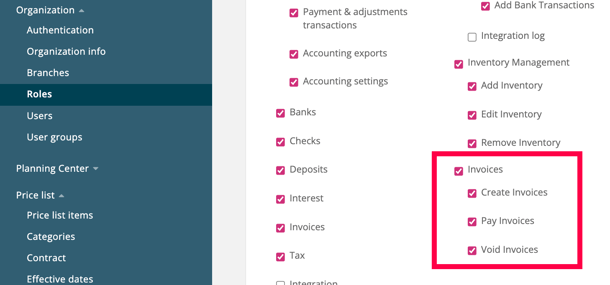
Under System > Financials you can grant user role permissions to access:
- Invoices (all), Create invoices, Pay invoices, or Void invoices
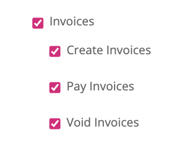
Make selections for this Role's permissions > Save
Configure Invoice PDF columns in Settings
Configure invoice PDF columns for Pet & Trade
Go to Admin > Financials > Invoices
For Pet and Trade, the following columns are already auto-checked:
- Charges
- Date
- Subtotal/Tax
- Adjustments
- Owner (Pet only)
| Trade columns | Pet columns |
|
|
|
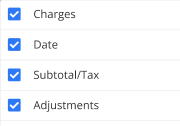
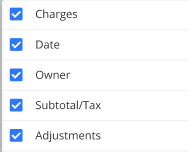
Uncheck any columns you do not want to show on the PDF > Save
You will then see the columns you selected on your Invoice PDF
Pet cases PDF:
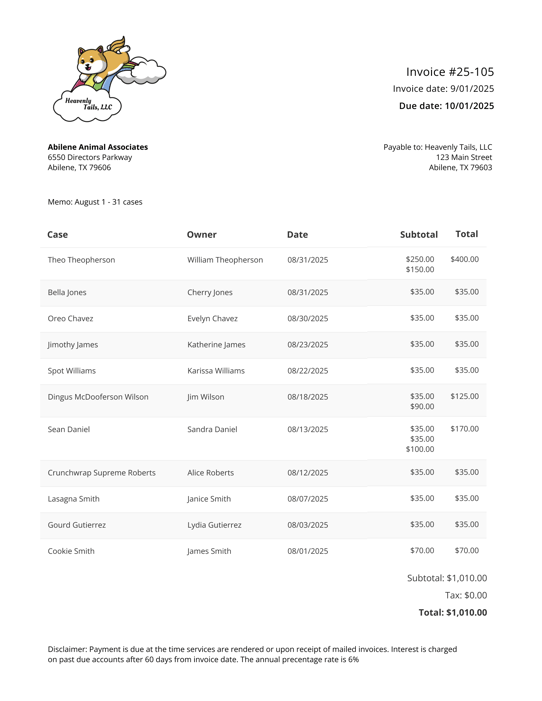
These columns will then be reflected on your Invoice PDF
Trade cases PDF:
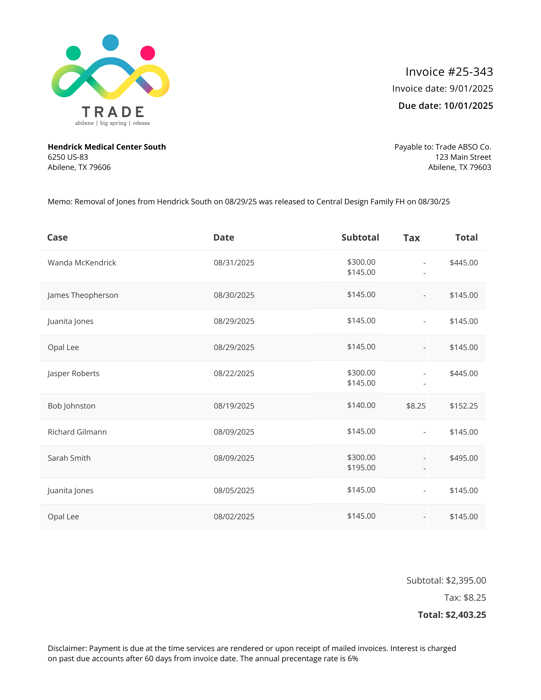
Invoices Page
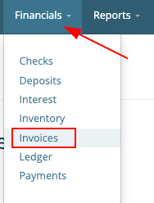
Go to Financials > Invoices
This takes you to the Invoices page
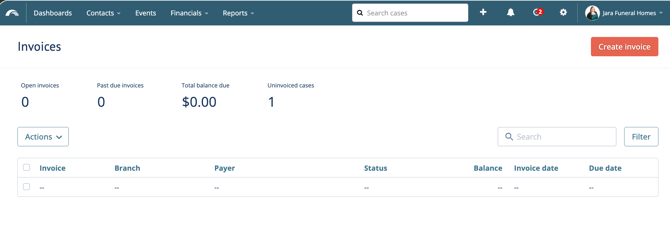
Here, you can:
- Create, view, and download invoices
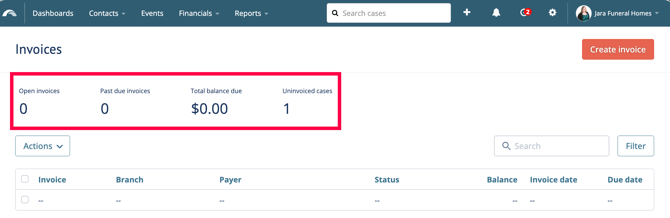
- See your Invoices summary
- Number of Open invoices
- Number of Past due invoices
- Balance due
- Number of Uninvoiced cases
Invoice status
- Open - An invoice has been created and has an outstanding balance.
- Closed - The invoice was created, sent, and has now been paid in full.
- Past due - the due date on an invoice has passed.
- Voided - When an invoice is voided, the cases and charges on that invoice are now available to be included on a new draft or invoice.
Download invoices
Select invoice(s) you'd like to download
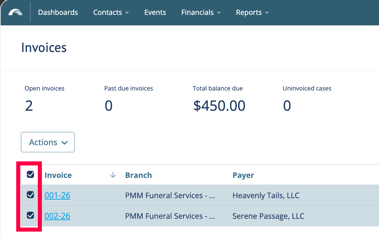
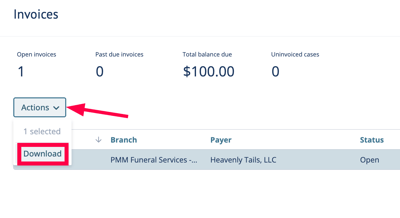
Actions > Download
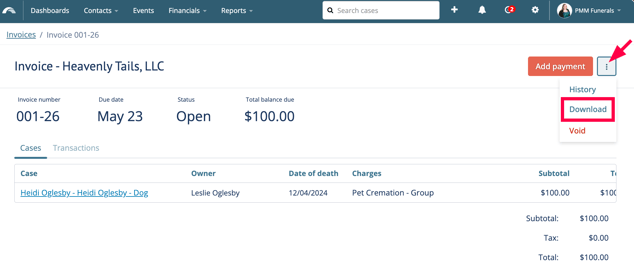
You can also download invoices directly from an open invoice > ellipses > Download
Search and Sort invoices
To search invoices, go to the Invoices page
Start typing in the Search box > View search results
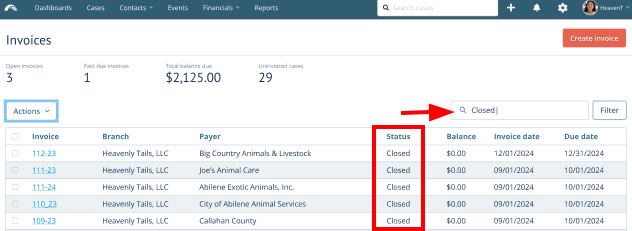
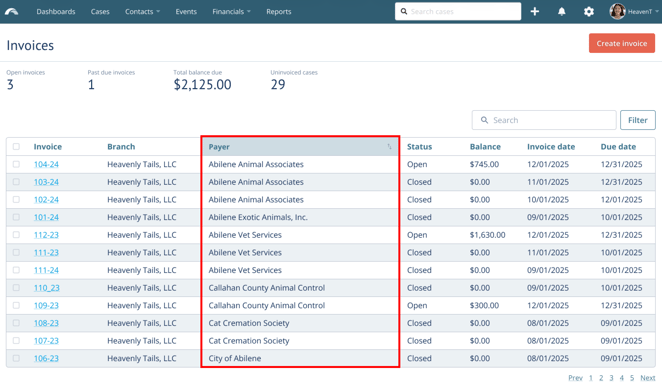
To sort invoices, click any of the column headers to sort A-Z or sort Z-A
Such as, by Payer (shown below)
Filter invoices
You can filter invoices in two places: from the full Invoices list or while creating invoices.
To filter all invoices, go to Invoices > Filter > you'll see the filter drawer appear
Add your filter selections and > Add filter or Apply
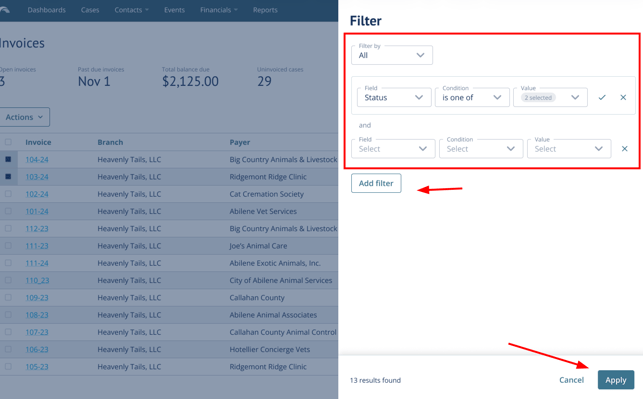
Filter all invoices
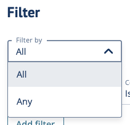
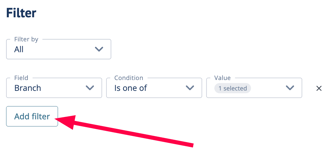
Choose whether you're filtering All or Any
- All - means every single filter must be true for the cases to show up
- Any - means any of the filters can be true for the case to show up
To filter, select a field > a condition > select or enter a value
You can filter by the following fields: Balance, branch, due date, invoice date, status, payer, or type
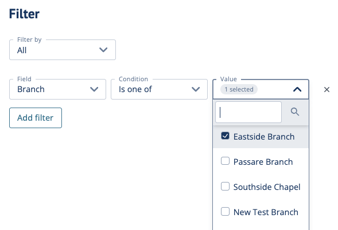
Once you've made your selection > Add filter
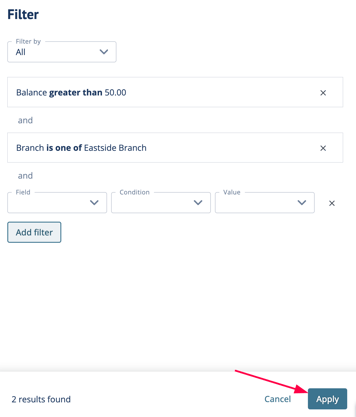
Add additional filters (as needed) > Apply
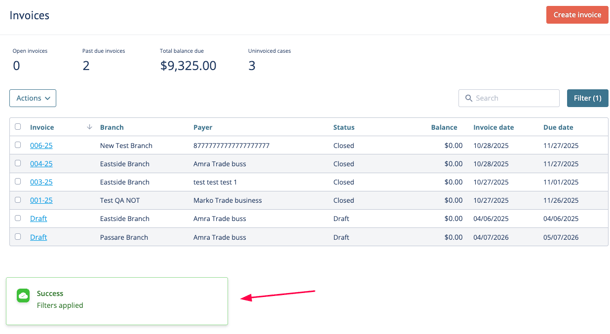
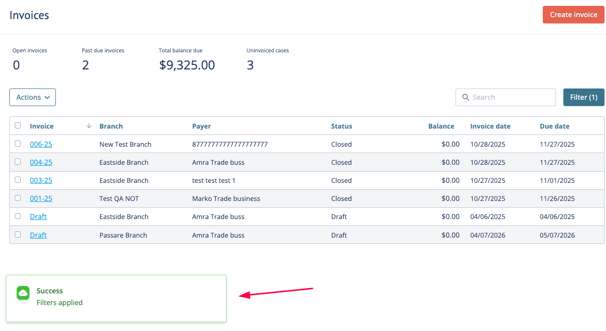
You will see a confirmation message and filter results when filters are applied successfully
Filter while creating invoices
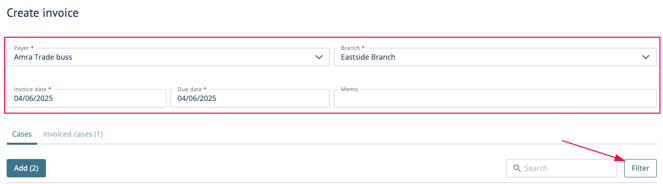
From the Create invoices page > select Payer, Branch, invoice date, due date > Filter
Choose whether you're filtering All or Any
-
All - means every single filter must be true for the cases to show up
-
Any - means any of the filters can be true for the case to show up
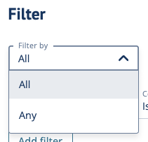
Next, select your field > select a condition > and a value
You can filter by the following fields: Case created date, case status, case tags, client service type, contract date, date of death, disposition date, disposition type, invoice signing date (first, last, or any)
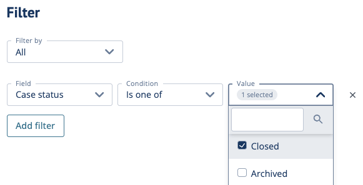
Once you've made your selection > Add filter
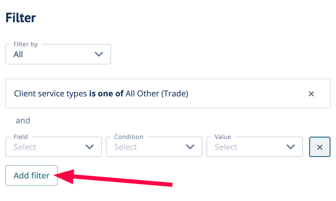
Add additional filters (as needed) > Apply
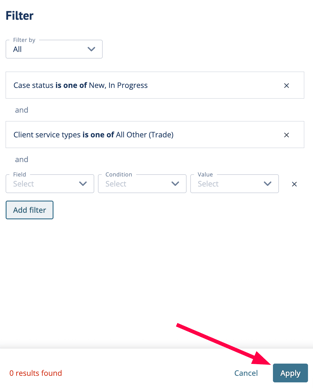
You will see a confirmation message and filter results when filters are applied successfully
Create an invoice
To create an invoice, go to Financials > Invoices
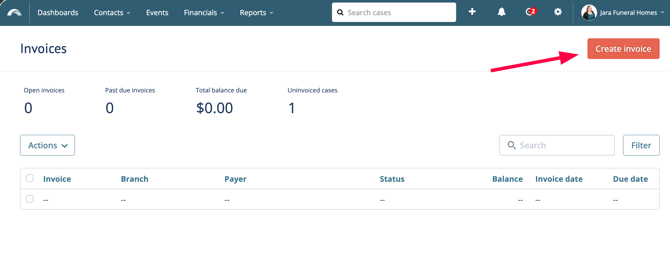
From the Invoices page > Create invoice
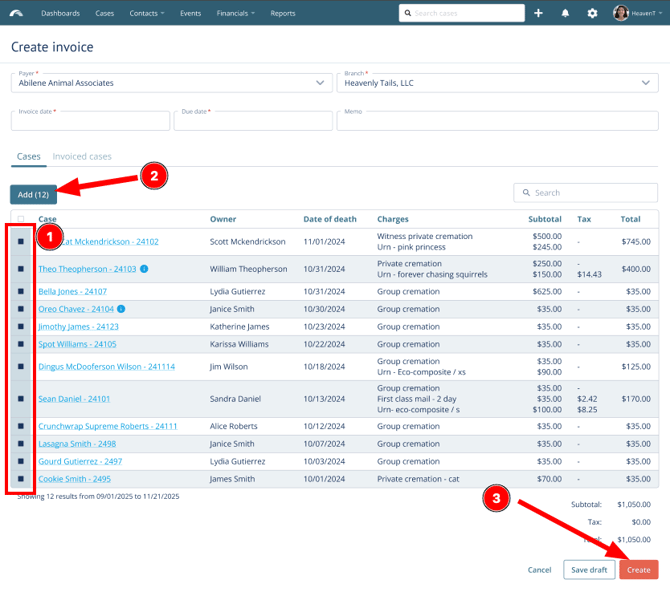
Complete the invoice fields:
- Payer
- Branch
- Invoice date
- Due date
- Memo
- ☑️ Check all cases to include on the invoice
Only cases that are tied to the selected payer that have been signed at least once and cases that have an outstanding balance will be available to include on an invoice. If you think any cases are missing, check whether they have been signed.
Select cases to add to your invoice > Add > Create
- The "
 " icon will appear when a case has unsigned changes
 - You can include a case with unsigned changes, but please note that charges must go on a separate invoice.
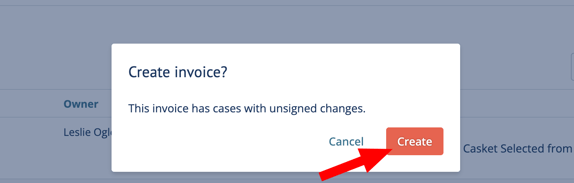
A confirmation pop-up will prompt you to proceed with creating an invoice with unsigned cases.
To proceed, confirm you'd like to > Create
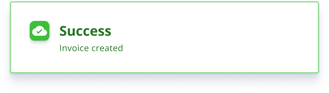
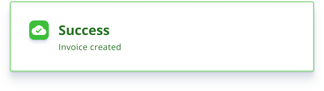
A green confirmation message will appear once the invoice has been created successfully.
Save a Draft
You can choose to save a draft instead 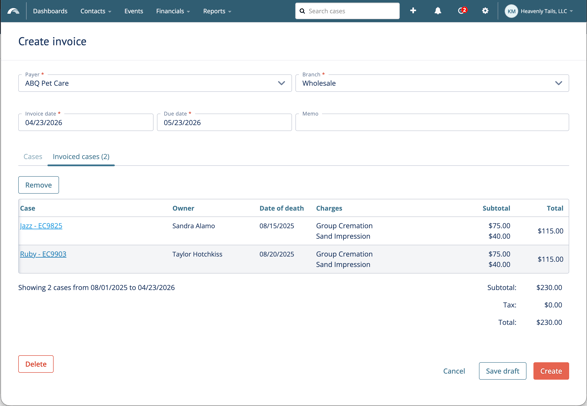
From the create invoice screen, simply choose cases you plan to invoice later > Add > Save draft
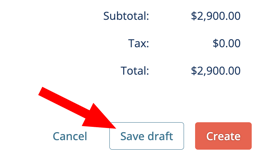
A green confirmation pop-up appears once the draft is saved.
Delete invoice drafts
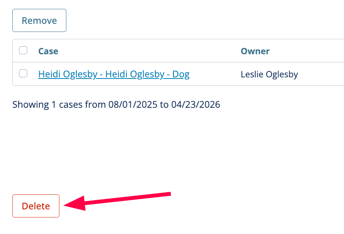
From the Invoices page > open an existing invoice > Delete
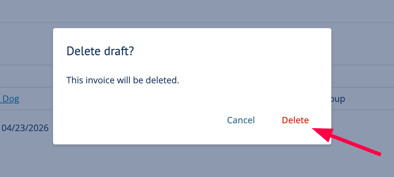
Confirm you'd like to Delete draft on the pop-up message > Delete
Pay, edit, delete, or void an invoice
Pay Invoices
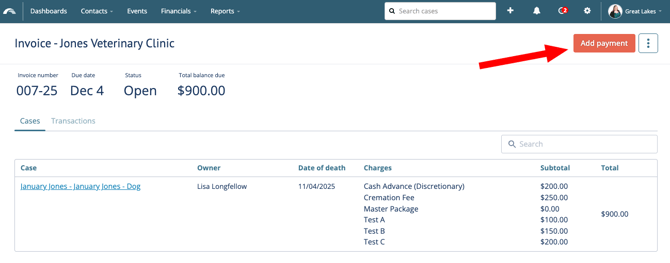
To add a Payment, go to Financials > Invoices
Open an invoice > Add payment
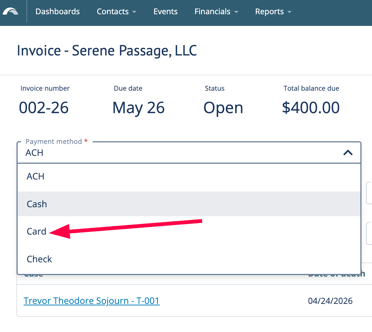
Next, Select a payment option:
- ACH, Cash, Card, or Check
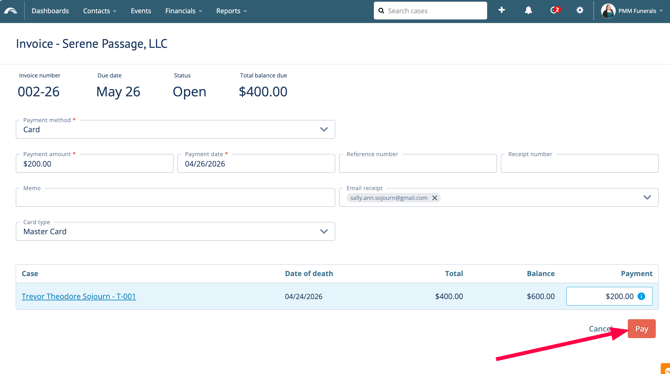
Complete all remaining payment details:
Payment amount*- Payment date*
- Payer*
- Email receipt:
- Memo
- Additional details for certain Payment Types:
- ACH - Reference number
- Check - Check number
-
- Card - Card type, or Card type: Other
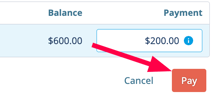
When all payment details have been entered > Pay
To send a receipt for a new Payment
-
Open an invoice > add Payment > edit or add new email recipients
-
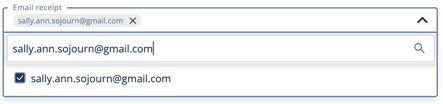
Click email recipient to:
-
Include or remove the Payer email, simply check or uncheck it.
-
Edit or add a custom email, type custom email > Enter to add custom recipient.
-
-
-
-
And Pay
-
The Email receipt field auto-fills with the Payer email from the Rolodex contact
Every address listed in the Email receipt field (Rolodex and custom) will receive the receipt.
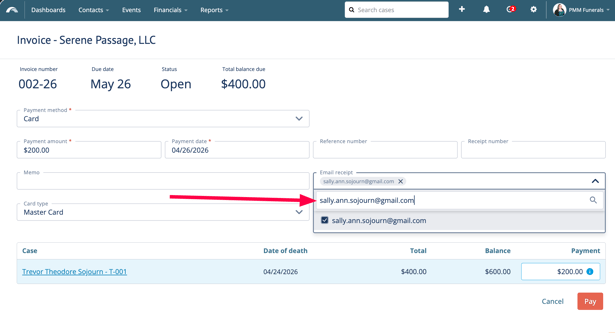
Custom email addresses added here are saved only for this payment on this invoice.
Note: Old payments emails do not change. They keep the email addresses that were set at the time.
A green confirmation appears when the payment's been saved.
NOTE: We do not currently have a way to automate, track, or send automatic reminders once an invoice is Past due.
Edit payments
To edit payments, start from Invoices > open an invoice
Go to the Transactions tab > open the payment actions list > Edit
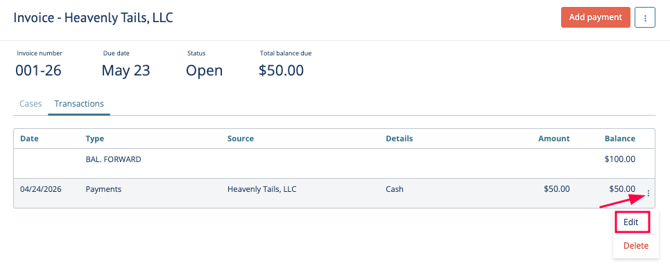
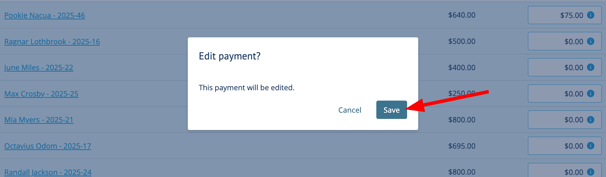
Edit payment details: payment method, payment amount, payment date, receipt number, and email receipt.
Once edits have been made, be sure to > Save.
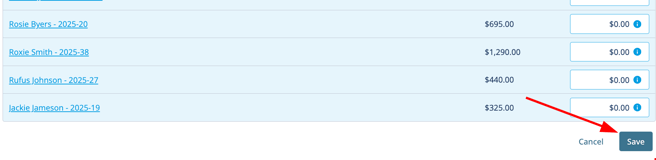
And confirm the edited pay details on the pop-up message > Save
Delete payments
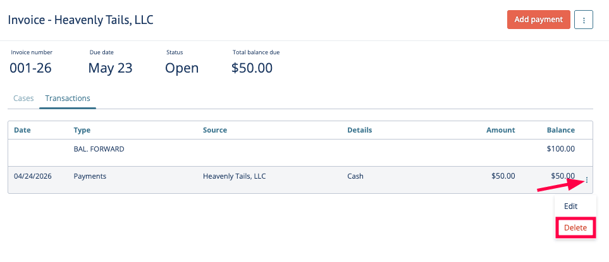
Go to Invoices > Transactions tab > open the ellipses menu > Delete
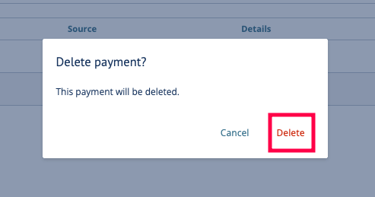
Confirm to delete payment in the confirmation pop-up message > Delete
Void invoices
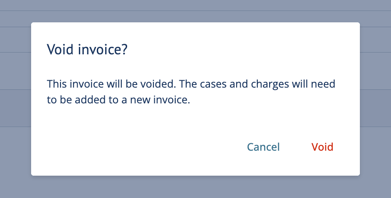
From the Invoices page > select an invoice or draft > Void > confirm Void
If you need to correct a charge, you do so by creating a new invoice
If you remove an item from a signed case, be sure to re-sign the case after removing it.
You can fix this in two ways:
1. Update the case
-
Make your changes > Re-sign the case > Save
2. Update the invoice
Choose one option:
-
-
Void the old invoice > create a new invoice > add the updated case, or
-
Create or edit a draft invoice > include the updated case > Save
-
Review and save
-
-
Check the Charges column on the Cases tab > Add any needed cases > Save
-
View invoice history and transaction history
If you need to navigate back, press Backspace or select the correct page from the top‑left navigation link.
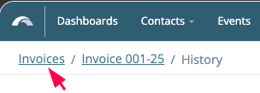
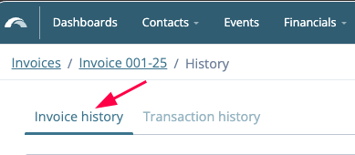
To see the detailed history > open either the invoice history tab or transaction history tab
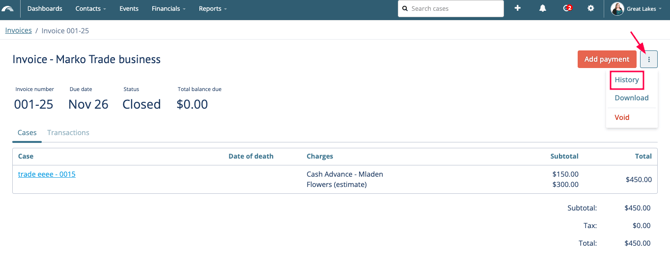
Open an invoice > see more options, open the ellipses menu > History
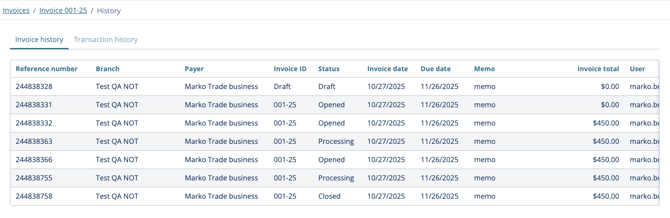
You can then view the history details
Adjustments
Before you can apply an adjustment, you must set which Adjustment types are used on invoices and whether they will increase or decrease the total.
Please reach out to our Support team if you need help setting up adjustments.
Enable adjustment types
-
Go to Admin settings > Financials > Accounting
-
Create or open your adjustment transactions > Adjustment types (e.g., "Volume Discount" or "Write-off")
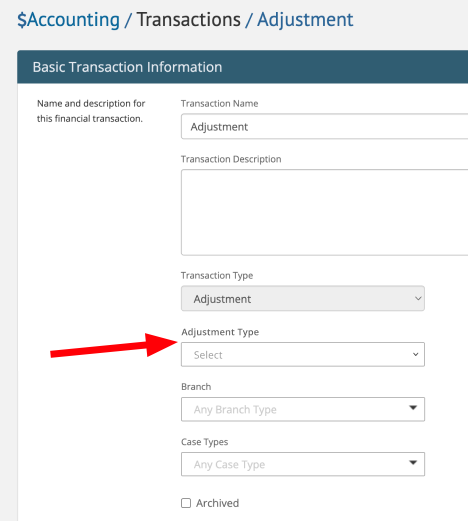
- Choose whether this adjustment decreases or increases the total > Save your changes.
- Decrease: Reduces the balance (e.g., discounts).
- Increase: Increases the balance (e.g., surcharges).
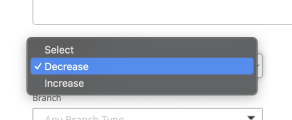
Configuring adjustment type (increase or decrease) is required on ALL adjustment transactions.
Set this in Adjustment settings (Admin > Accounting > Adjustments > Adjustment type) when possible. If it isn’t set there, you’ll choose increase or decrease when adding adjustments on the Invoicing and Payments & Adjustments pages.
Apply adjustments to an Invoice
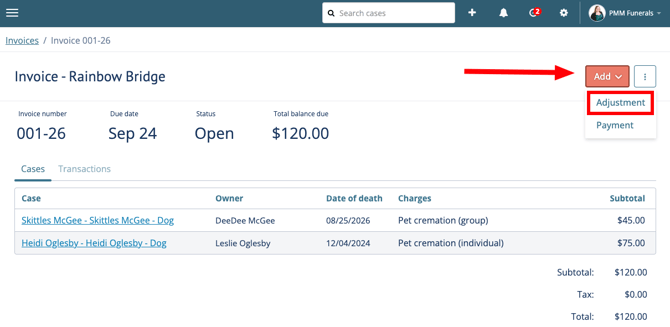
- Go to the Invoices page
- Go to an Open or Past Due invoice > Add > Adjustment
- Pick your adjustment type
- Decrease (discount)
- Increase (surcharge)
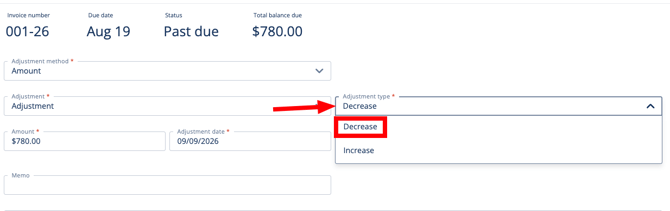
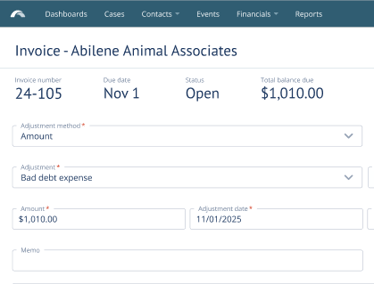
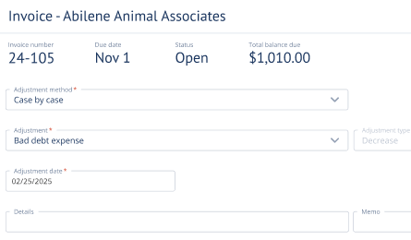
- Choose adjustment method:
- Amount: Enter a total dollar amount to apply to the entire invoice.
-
- Case by Case: Type in specific discount amounts for each individual case listed.
-
If not already specified in your adjustment financial settings, you may have to select whether the adjustment will decrease (e.g., discount) or increase (e.g., surcharge) the total.
- Enter the Date > Add.
Case-Level Locking: When a case is tied to an invoice, the "Add transaction" button is disabled and shows "Tied to invoice."
Verify results
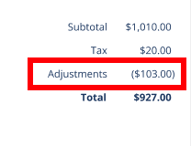
- On the Invoice: You will see the "Total Balance Due" decrease or increase immediately.
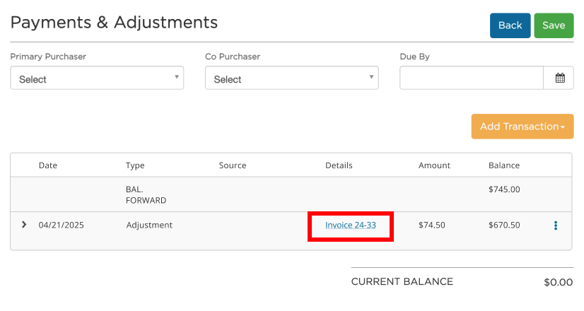
- On the Case: If you open an individual case that was part of that invoice, go to the Payments & Adjustments page. You will see the discount listed there with a clickable link back to the original Invoice Number.
Edit an adjustment
On the invoices page, go to an adjustment transaction > open the ellipses menu > Edit
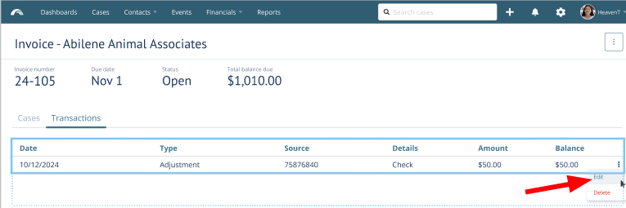
Make changes > and Save
You'll now see the adjustments column

Delete an adjustment
On the invoices page, go to an adjustment transaction > open the ellipses menu > Delete
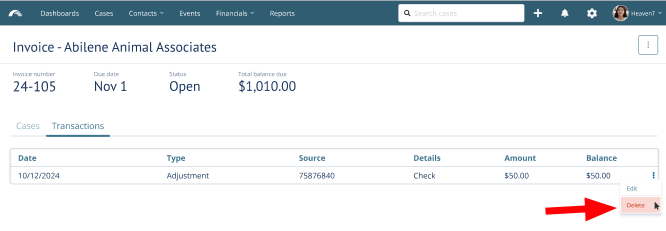
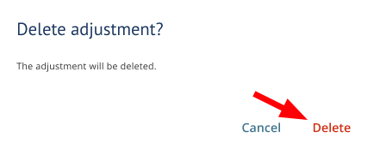
Confirm that you want to delete
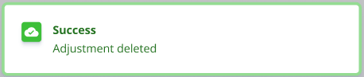
You'll see a green confirmation message when the adjustment is deleted successfully
Quick Tips:
- Red Highlight? This means your discount exceeds the remaining balance. You’ll need to lower the amount.
- Blue Highlight? This just lets you know that a specific case still has a remaining balance after the discount.
- Locked Date? If you try to use a date that is "locked" by your accounting settings, Passare will automatically move it to the first available open day.
Batch actions
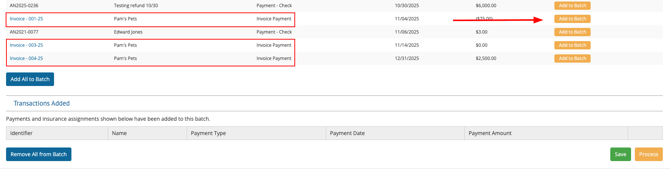
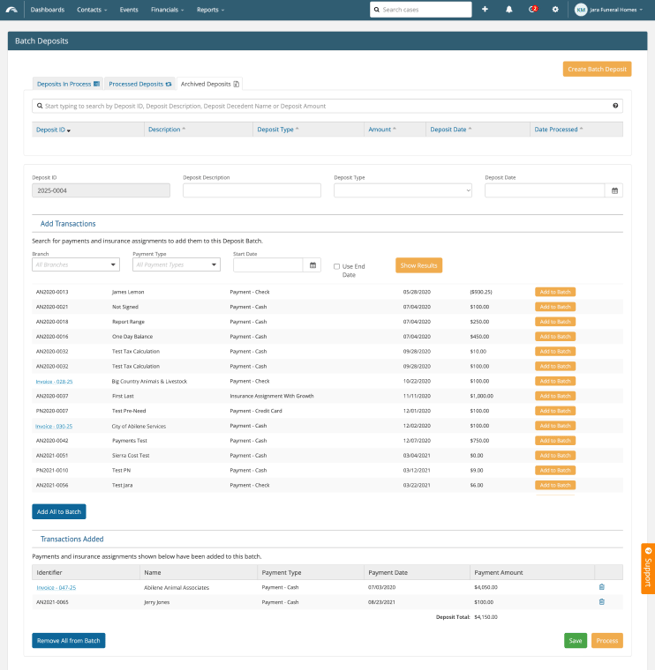
Once the feature is turned on, you'll see invoice payments as an option to add to your Batch Deposits
Go to Financials > Deposits > Create Batch Deposit
Add any invoice payments you'd like to include on your Batch Deposit > Save!
Goods and Services page
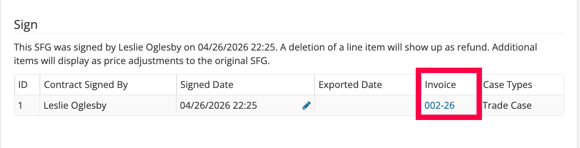
On the Goods & Services page, there's a new Invoice column located in the Sign case section.
Invoice links tied to this case are listed in the new Invoice column.
Click an invoice link to be rerouted to view the invoice and invoice details.
Payments & Adjustments page
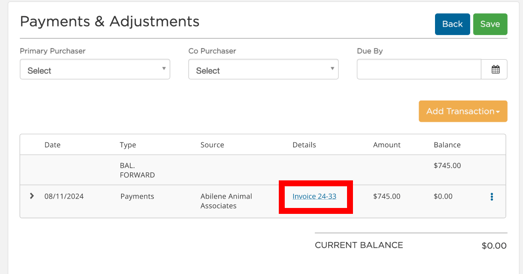
On the Payments & Adjustments page, you now see Invoice links
Invoice links are tied to their payments, and adjustments for this case will be shown and linked under Details.
Simply click any invoice link to be rerouted to the invoice and view any associated transaction history or activity.
Need help? Email support@passare.com or call (800) 692-5111.