
Jump ahead to
- Create a note
- Important notes
- Mention users
- Comment on a note
- Note notifications
- React to notes and comments
✍️ Staff with access to the case will be able to view and add notes.
Create a note
In a case, go to the Notes page.
You can also add notes at the bottom of other pages within the case.
Begin filling out the note title and text fields with information.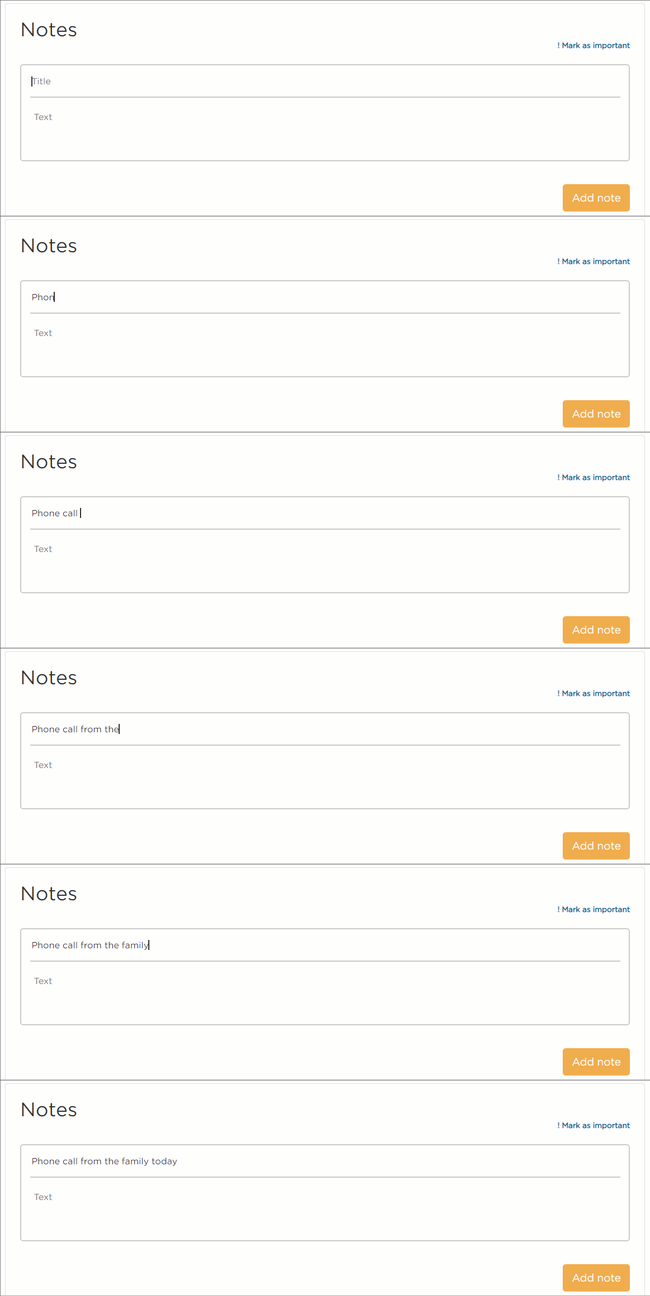
Once all details are added, click Add note.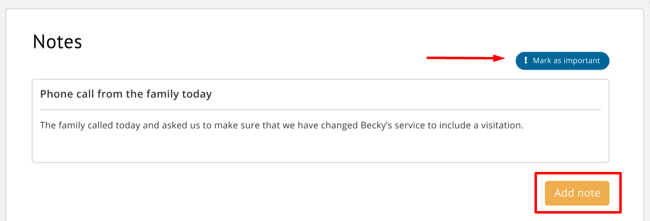
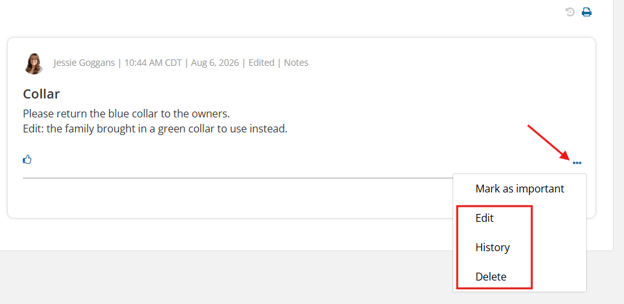
To delete or edit a note, click the ellipses icon next to your note and choose the correct action.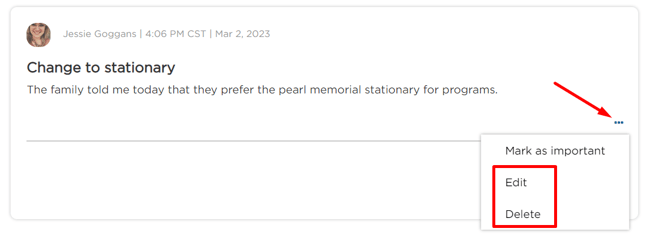
Important notes
Important notes are a helpful tool to keep your team aware of important or sensitive case information.
To emphasize a note, mark it as important by clicking the exclamation icon in the top-right.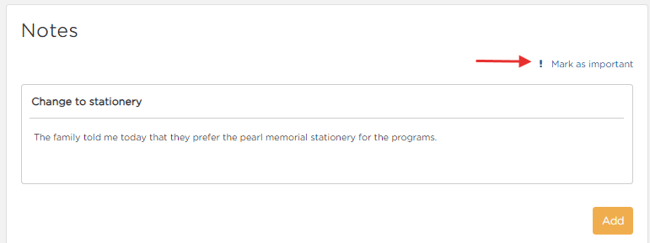
All notes marked as important will have a bold border and exclamation icon.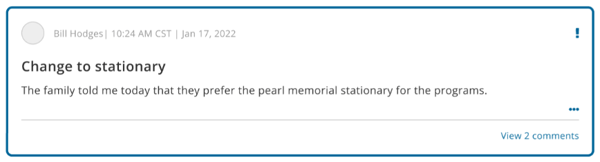
To flag an existing note as important, click the ellipsis and select Mark as important.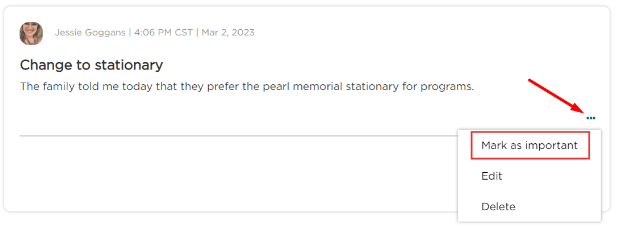
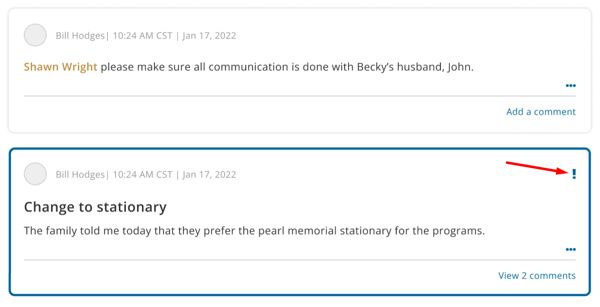
Remove a note's importance by clicking on the exclamation icon. This will remove all importance indicators.
💡Anyone with access to Notes can remove a note's important status.
Important notes can be viewed from the Important Notes banner and on the Case Summary page.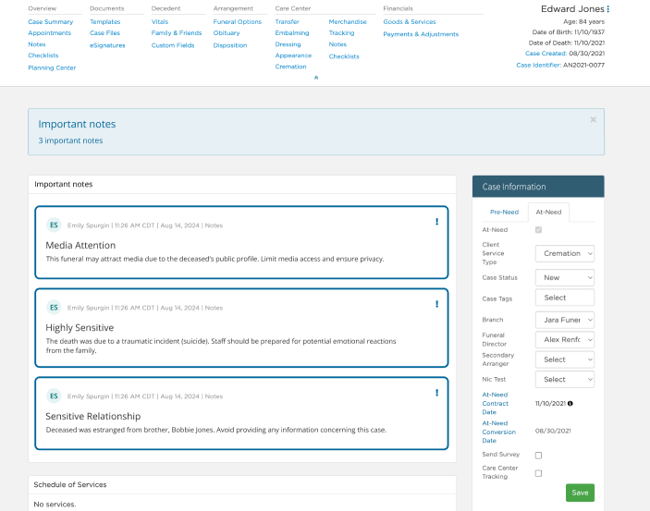
Review important notes from any page of the case by clicking the banner.
A modal will appear showing all important notes for that case.
From here, you can remove importance or click the note to view the origin page for commenting or editing.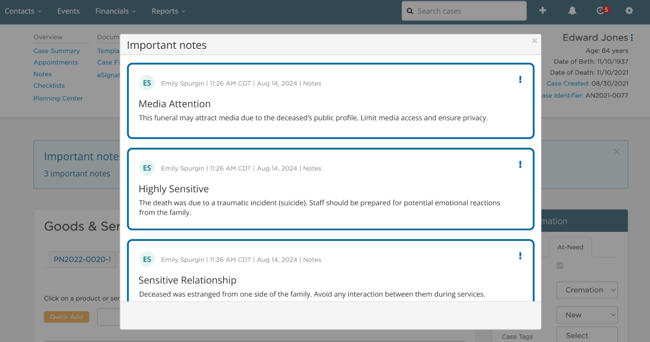
If you are meeting with a family and do not want them to see the important notes, you can dismiss the banner in that case for 2 hours by clicking the x.
You can also collapse the Important Notes section of the Case Summary page by clicking the caret.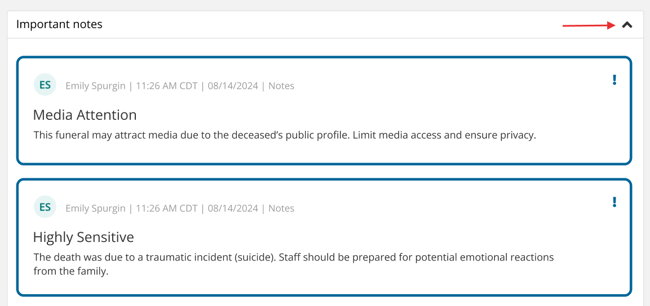
Mention users
Let others know about a note or comment with the mention feature.
To do this, type their name using @name format and select the correct person from the list. If you want to include multiple users, separate them with a comma.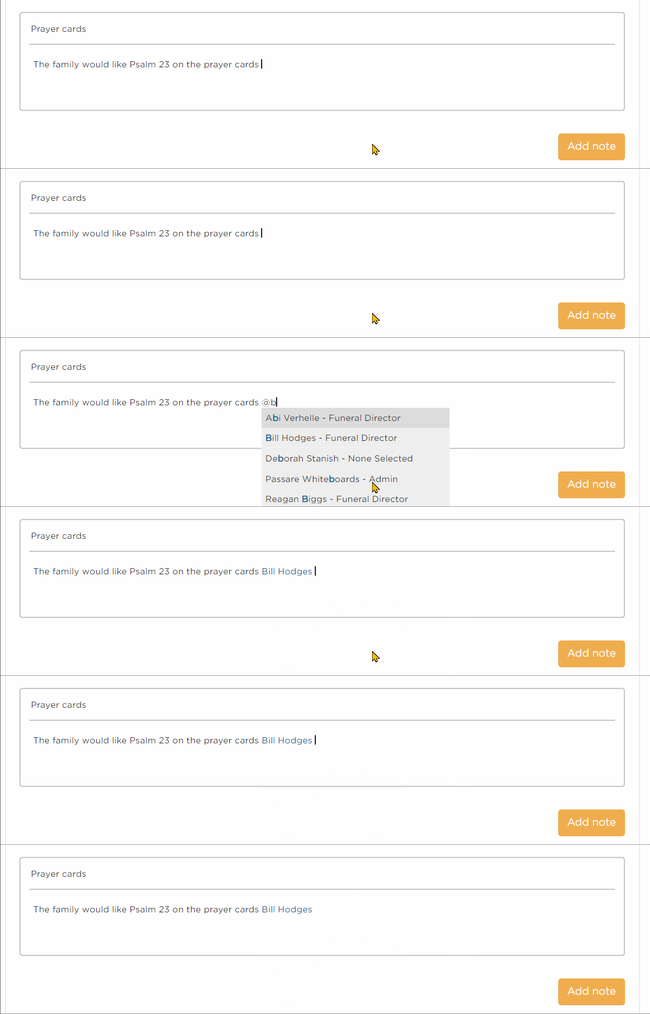
To notify a group of users, you can @mention an entire role (i.e. @funeraldirector) or all Passare users with @all. 
Comment on a note
Keep the conversation going with note comments and replies.
Comment on a note by clicking Add a comment or View comments.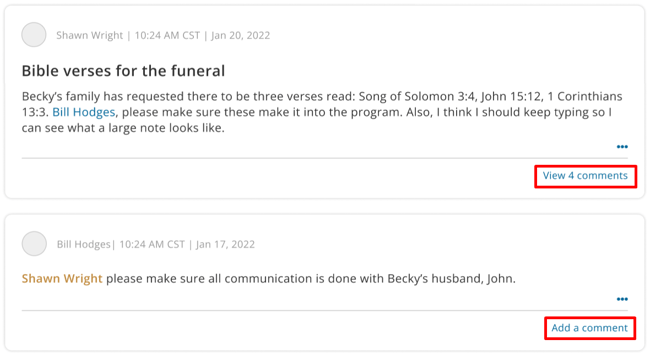
Click reply to automatically mention the author and user(s) mentioned in the comment.
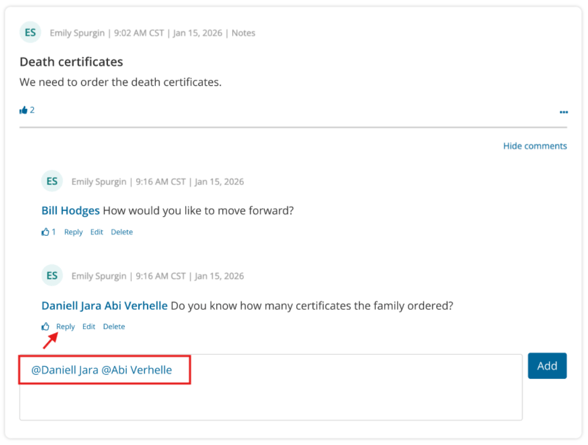
Type in your comment and click Add.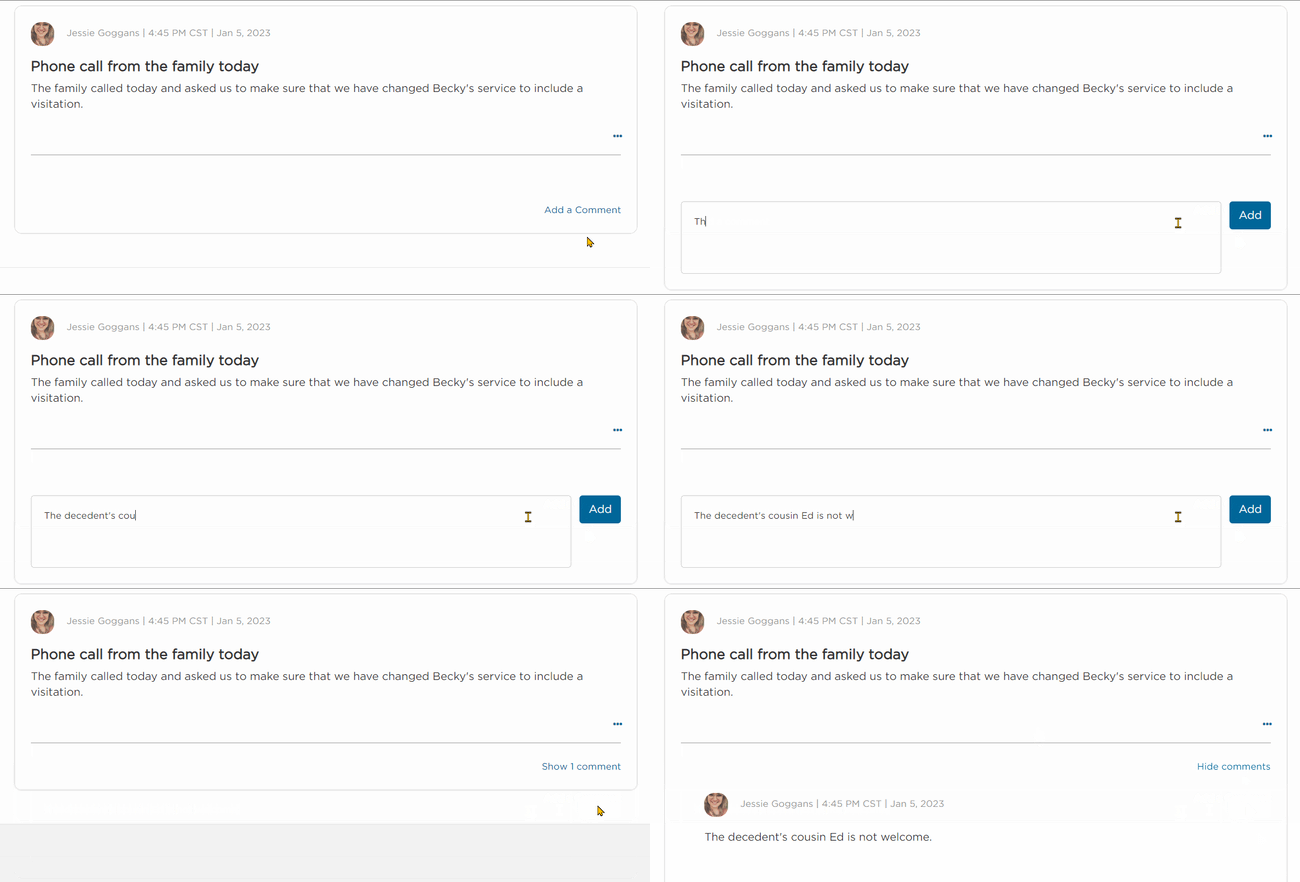
Editing others' notes and comments
Admins can enable certain roles to edit and delete notes/comments created by other users. This is helpful if you need to update notes/comments made by someone no longer at the company.
To do this, go to Settings > Organization > Roles, and select a role.
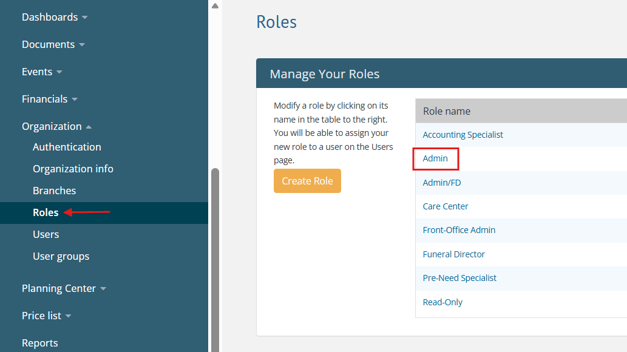
Go to This role can and select the appropriate permission(s):
- Delete other user's notes and comments
- Edit other user's notes and comments
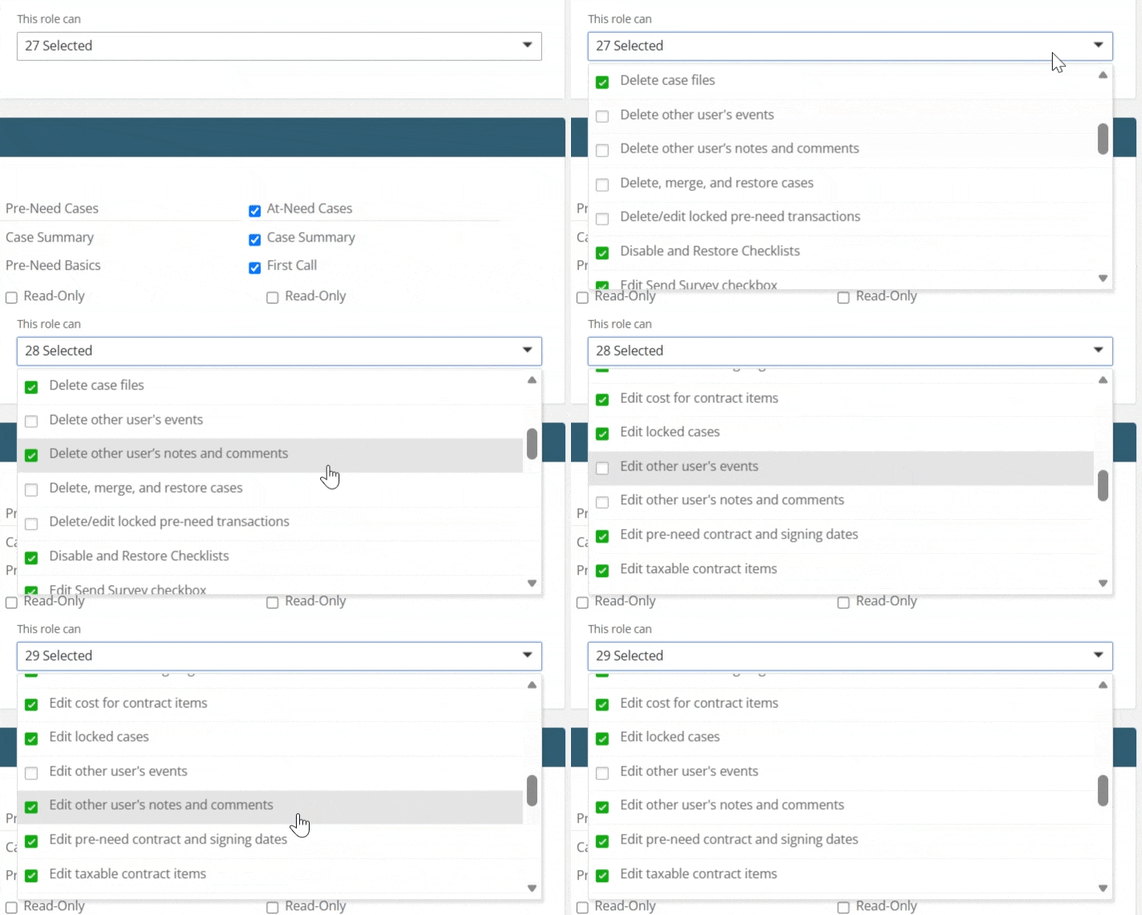
Anyone in that role can edit or delete notes and comments from the ellipsis. They can also view the note or comment's history to see what changes have been made.
Edited notes and comments will be indicated in the timestamp.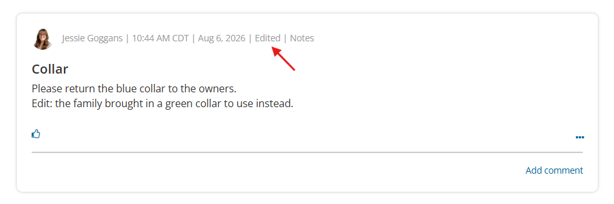
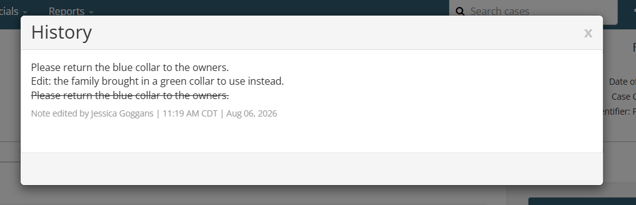
Clicking History will show each change (listed oldest to newest), who made the change, and when.
Note notifications
You can receive notifications for note activity by text message, email, or in-app alert.
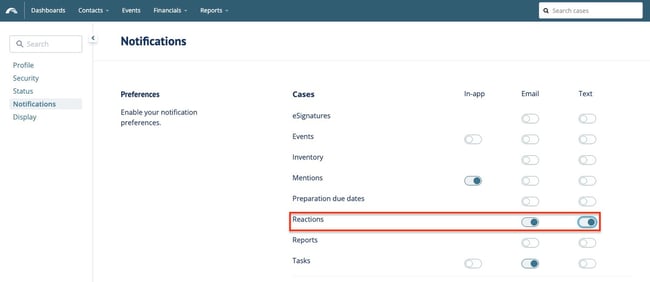
Configure your notification preferences by clicking the bell icon, then the gear icon.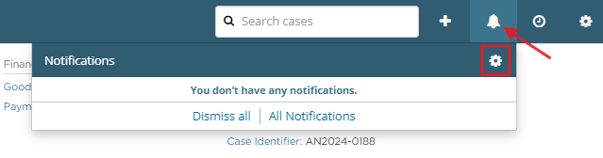
Here, you can configure your notification preferences for Mentions.
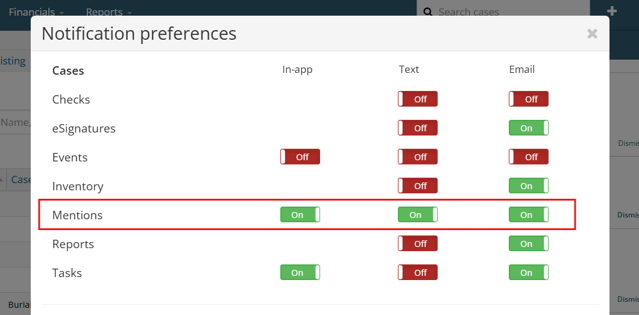
In addition to in-app, text, or email, you will receive notifications in Passare under the bell icon.
You will be notified if:
- Someone comments on a note you created
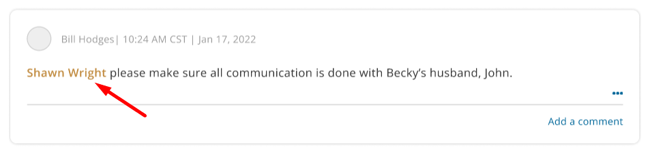
- Someone mentions you or your role in a comment or note
Click a notification to view the case and note/comment it is referencing.
A blue dot indicates unread notifications, while any note you are mentioned on shows as orange text.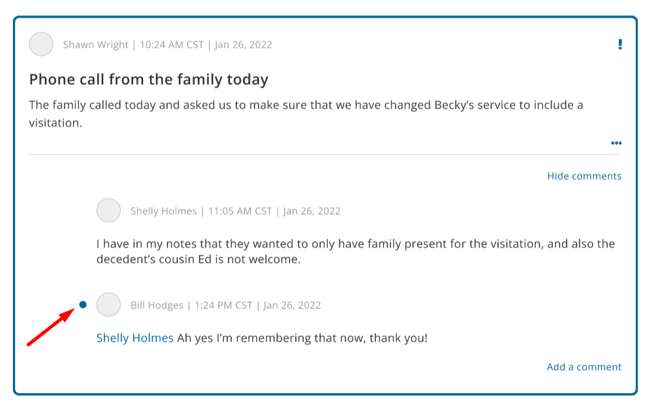
React to notes and comments
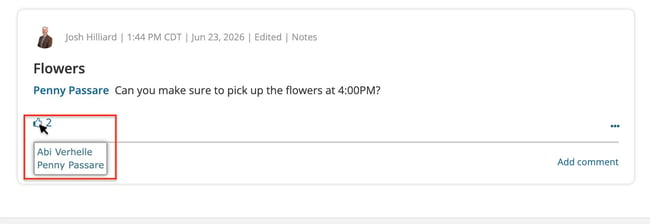
Anywhere notes or comments appear in a case, a thumbs-up icon now appears under the text.
Clicking the icon adds or removes your thumbs-up, updating the total.
Hovering over a reaction shows who has reacted, so staff can quickly see who has seen a note.
You can also react directly from the Notifications dropdown.
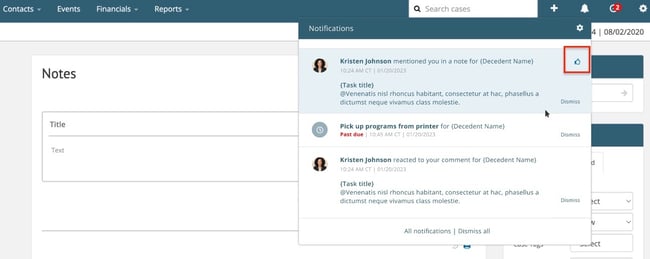
Get notified when someone reacts to your notes and comments. This can be configured in your Notifications Preferences.
Need more information?
Need help? Email us at support@passare.com or call (800) 692-5111.