
Jump ahead
Access Case Files
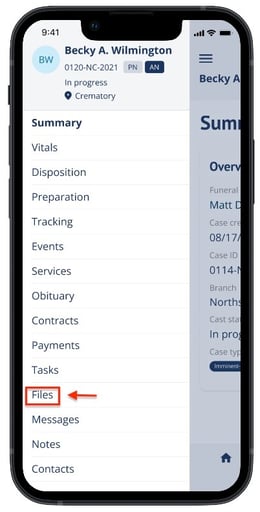
Open a case in the Passare mobile app. Tap the ☰ menu icon in the top-left corner of the screen (or swipe right from the left edge) to open the case drawer menu. Then tap Files.
Add and View Files
💡Using AI Notetaker? Recordings are saved to the Case Files page.
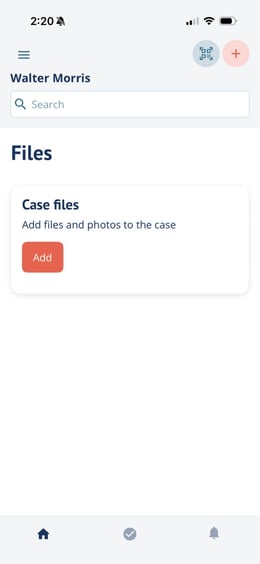
You can tap the + (plus) button in the top right to add a file, or if no files have been added to the case, use the Add button under Case Files.
Choose a file from your phone or tap scan documents to open the scanner and add physical documents directly to the case.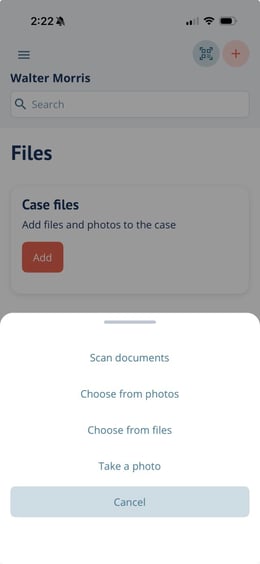
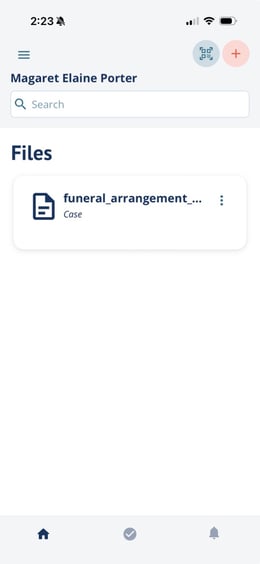
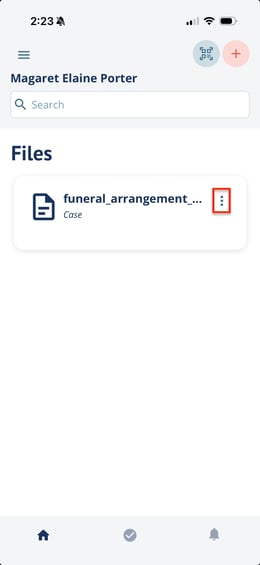
Files that have been added will now be displayed on the Files page. Tap on a file to view the details.
Edit and Download Case Files
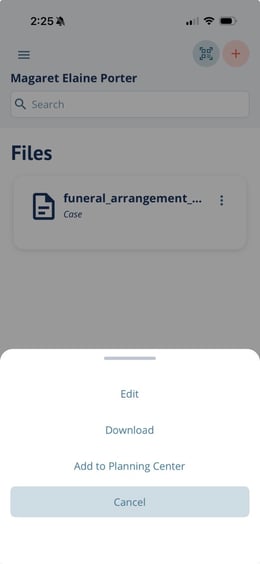
Tap the ellipses to the right of a file to edit the name or download the file.
Need more information?
Need help? Email us at support@passare.com or call (800) 692-5111.