
Skip to:
- Turn on the feature
- ChatGPT connection
- Claude connection
- Connecting other AI tools
- Add Passare MCP to your AI client
Turn on the feature
You must have administrative permissions in Passare to enable feature flags.
Navigate to Settings > Features > Feature flags.
Scroll down to Features and turn on OAuth2 Applications.

Click Save.
ChatGPT connection
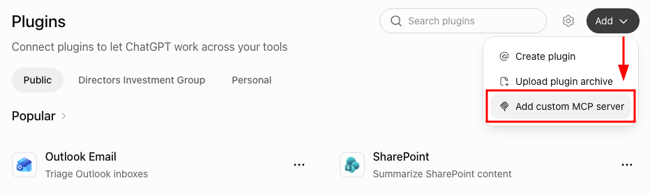
In ChatGPT, go to Plugins > Add > Add custom MCP server.
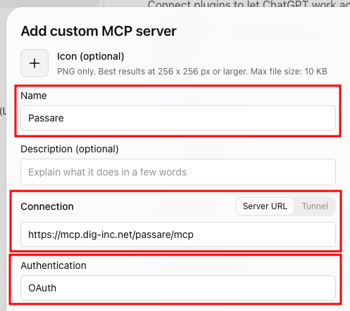
Type Passare in the name field.
Enter https://mcp.dig-inc.net/passare/mcp in the Server URL field.
Select OAuth for Authentication.
Expand Advanced OAth Settings and copy the Callback URL. ChatGPT generates this URL when you begin adding a custom connector.
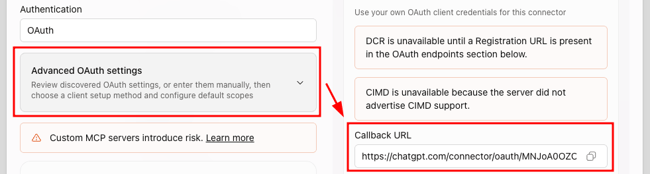
KEEP CHATGPT OPEN
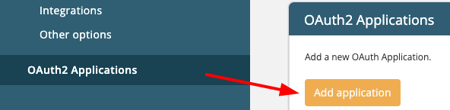
In Passare, go to Settings > OAuth2 Applications.
Click Add Application.
Enter a name in the OAuth2 Application Name field (e.g., "ChatGPT Connector").
Paste the Callback URL from ChatGPT into the Redirect URI name field.
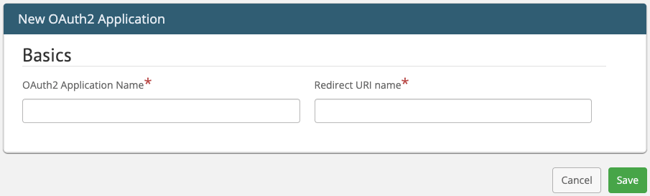
Click Save.
Your new application should look like this.
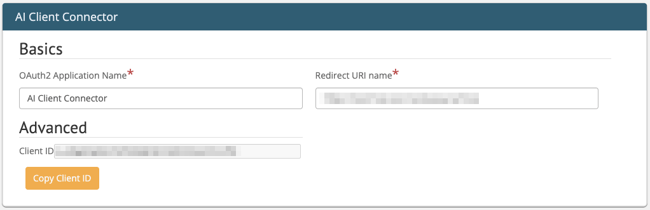
Copy the Client ID from the saved application.
Return to ChatGPT and paste it into OAuth client ID.
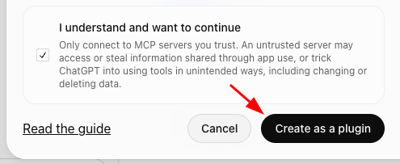
Click Create as a plugin.
Continue to Authorize the connection below.
Claude connection
In Claude, go to Customize > Connectors.
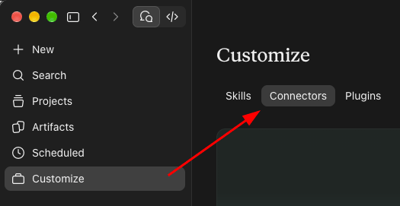
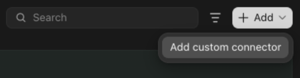
Click Add > Add custom connector.
Enter Passare in the name field.
Enter https://mcp.dig-inc.net/passare/mcp in the MCP server URL field.
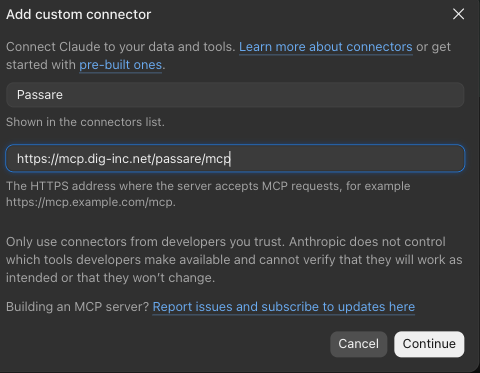
Allow Claude to complete its automated checks.
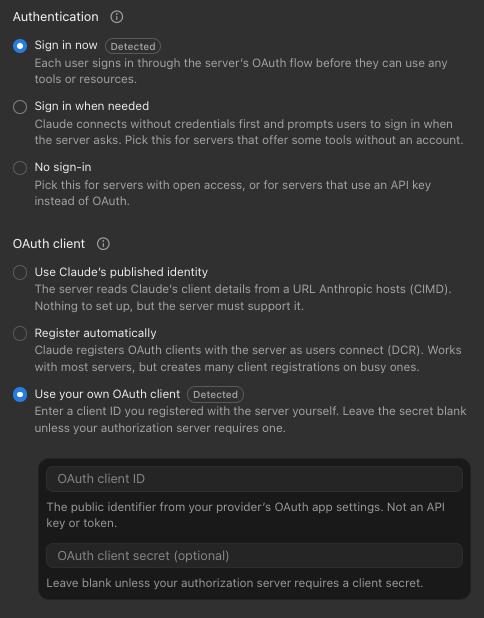
On the next screen, select Sign in now and Use your own OAuth Client.
In Passare, go to Settings > OAuth2 Applications and click Add Application.
Enter a name in OAuth2 Application Name, such as "Claude Connector."
Enter https://claude.ai/api/mcp/auth_callback in Redirect URI name.
Click Save.
Copy the Client ID from the saved application.
Return to Claude and paste the Client ID into the OAuth client ID field.
Click Add.

Continue to Authorize the connection below.
Connecting other AI tools
First, find your AI tool's Callback URL in its connection or integration settings. It may be called a Redirect URI or OAuth Redirect URL.
In Passare, go to Settings > OAuth2 Applications and click Add Application.
Enter an application name and paste the Callback URL into Redirect URI field.
Click Save.
Copy the Client ID and enter it in your AI tool's MCP connection settings.
Use https://mcp.dig-inc.net/passare/mcp as the server URL.
Depending on the tool, you may also need to create or publish the connection, configure who can access it, and choose which actions are available. If needed, find the published connection in the tool's directory and click Connect.
Authorize the connection
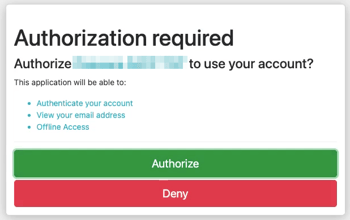
Once the Passare MCP server is connected, your AI tool will direct you to Passare.
- Log in with your Passare username and password
- Review the authorization question
- Click Authorize
Need Help? Email us at support@passare.com or call 1-800-692-5111.