
✋ To use this integration, you need to first submit the application to PA DOH, complete training, and have the integration enabled by Passare Support.
Connect users
Where you configure EDRS information depends on whether you're connecting yourself or another user.
Connect other users
Go to Settings > Organization > Users and select a user.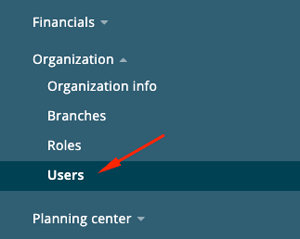
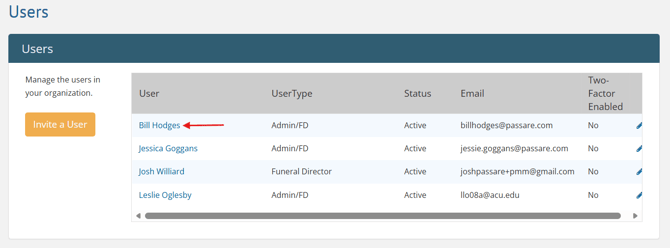
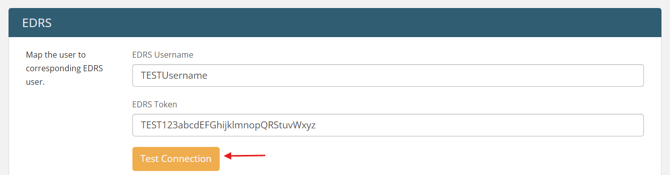
Scroll to the EDRS section to enter the username and EDRS token (provided by Pennsylvania).
Then, click Test connection to verify the credentials.
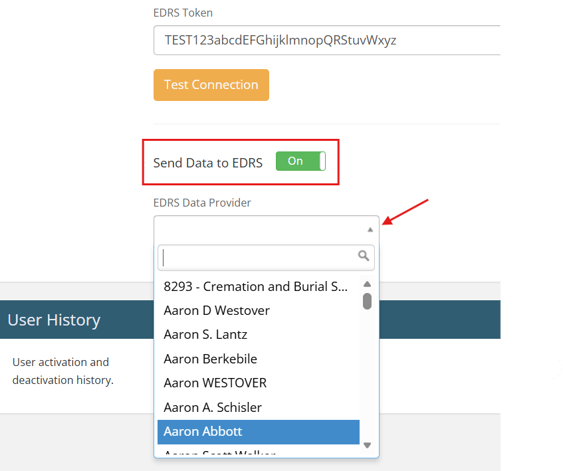
Toggle on the option to Send Data to EDRS and select their name in the EDRS Data Provider dropdown.
Connect (or edit) your user
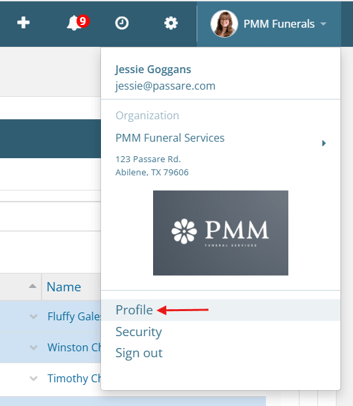
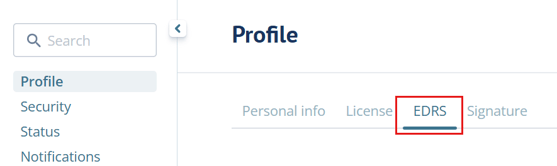
Go to your Profile and select the EDRS tab.
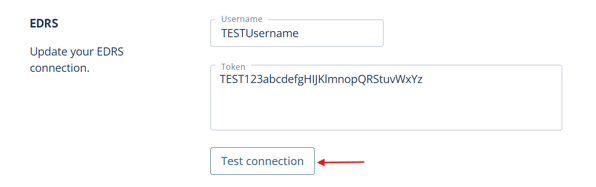
Enter your username and EDRS token (provided by Pennsylvania).
Then, click Test connection to verify the credentials.
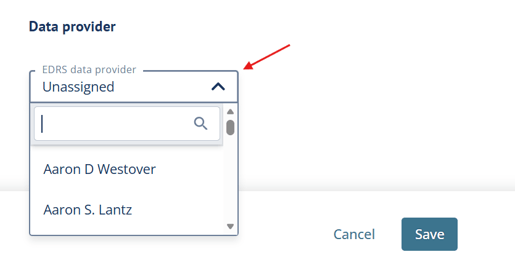
Select your name in the EDRS Data Provider dropdown and save.
Token expiration
EDRS Tokens expire every 60 days. Pennsylvania will send a new token via email on day 53.
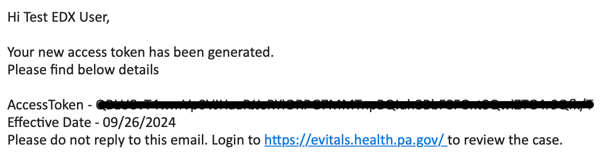
Do not enter your new token in Passare until the effective date indicated in the email, since only one token is active at a time.
If you ever lose your current active token, find it in your eVitals profile settings. 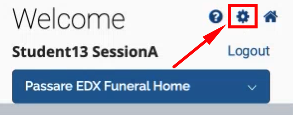
Connect locations
Death and disposition locations (such as hospitals, hospices, and cemeteries) need to be connected to the EDRS system.
Go to Contacts > Organizations.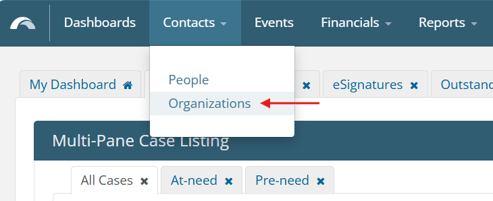
Select a location.
Under the EDRS section, toggle on Send Data to EDRS.
Select the corresponding location in the EDRS Facility dropdown. 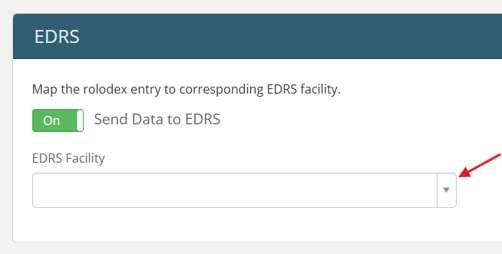
Repeat the above steps for all locations that need to be mapped to EDRS.
To add a location to EDRS, email RADHDeathSupport@pa.gov with the facility type, name, and address (including zip).
If a location is not mapped, you will be prompted to map it while syncing a case.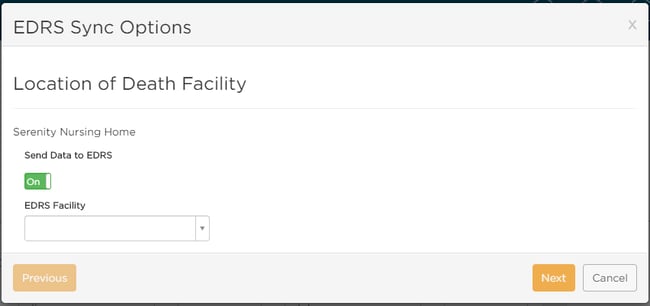
Need more information?
Need help? Email us at support@passare.com or call (800) 692-5111.