
✋ Before you begin
Register and connect your account to Passare → Get started with Deluxe payments
Canadian Deluxe accounts can process credit card payments only. ACH and card swipers are not available.
Skip to:
- Add a payment
- Process a card payment
- Process an ACH payment
- Void a payment
- Refund a payment
- Frequently asked questions
Add a payment
Open the relevant case and go to Payments & Adjustments.
Select Add Transaction > Add Payment.
Select the payment type: Card or ACH.
Enter the payment details and process or save the payment as needed.
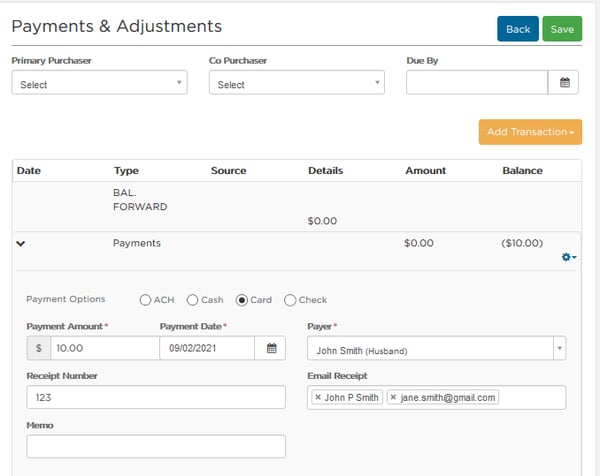
You can add a Receipt Number, Memo, and email address under Email Receipt. An email address is not required, but it can be used to send a digital receipt.
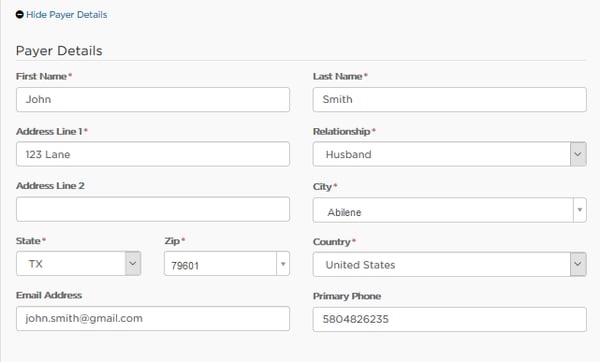
If the payer is not already saved in Passare, complete Payer Details. Fields marked with an asterisk (*) are required to process the payment.
Required payer fields change when the payer's country is outside the United States:
-
Canada — Select Canada to replace State/Zip with Province, FSA, and LDU.
-
Mexico — Select Mexicoto replace State/Zip with Postal Code and State.
-
Other countries — For countries other than the United States, Canada, or Mexico, complete the fields as follows:
-
Address Line 1: Street
-
Address Line 2: City
-
Address Line 3: State
-
Address Line 4: Zip
-
Process a card payment
Select the Card payment option.
Enter the Amount, Date, and Payer.
Add a Receipt Number, Memo, and Email Receipt address(es) if needed.
Complete required Payer Details if the payer is new.
Choose one of the following options:
-
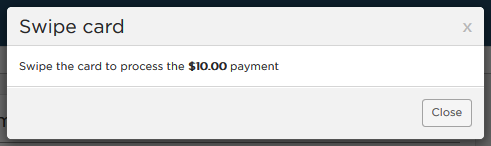
Swipe Card — Use an integrated card swiper to process the card. If a card swiper is not connected, card info must be entered manually.
-
Choose Swipe Card, then click the Swipe button
-
Review the confirmation and swipe the card
-
-
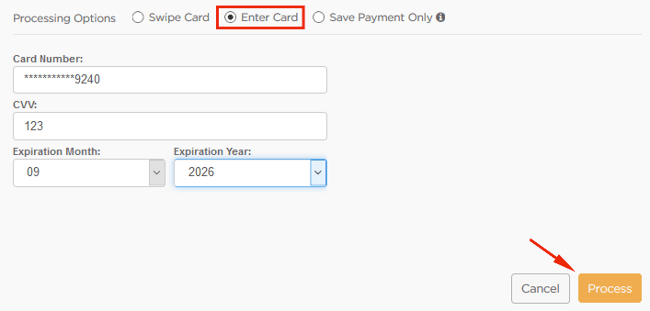
Enter Card — Type the card details into Passare manually.
-
Choose Enter Card, then provide the card details: Card Number, CVV, Expiration Month, and Expiration Year
-
Click Process
-
Review the confirmation modal and click Process again
-
-
Save Payment Only — If the payment was processed outside Passare and you only need to record it in the case, choose this option.
-
Choose Save Payment Only
-
Enter the Amount, Date, and Payer
-
Click Save
-
Prepaid Visa and Mastercard gift cards: Prepaid cards work similarly to debit cards. The payer may not know the address or security code associated with the card as requirements vary by card issuer. If necessary, use the card presenter’s contact information.
Process an ACH payment
Select Add Transaction > Add Payment.
Choose ACH under the Payment Options section.

Enter the Amount, Date, and Payer.
Add a Receipt Number, Memo, and Email Receipt addresses if needed.
If the payer is new, complete Payer Details.
Enter the Routing Number, Account Number, and Account Type.
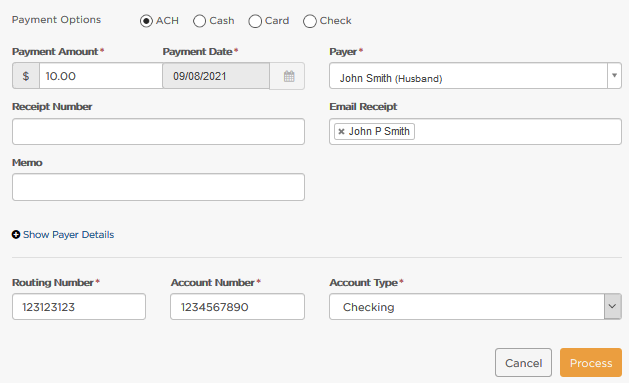
Click Process.
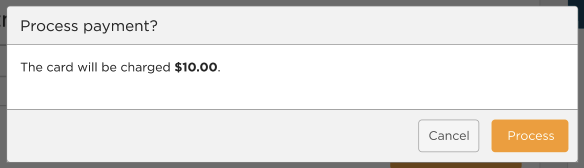
Review the confirmation and click Process again to complete the payment.
ACH payments can take 2–3 business days to process through the bank. If an ACH payment is declined, users with payment notifications enabled receive an email.
Additional ACH information:
- Can I enter a physical check as ACH? Although you may be able to enter routing and account information from a physical check, do not do so unless the payer has explicitly authorized the ACH transaction. Without explicit authorization, the payment should not be processed. A written check could also later be cashed, resulting in a double charge.
- Why is payer address information required? Card-not-present transactions are considered higher risk than card-present transactions. An address helps mitigate that risk.
- Does the address need to be the actual billing address? Ideally it would be the billing address of the cardholder, however, it will not be scrutinized unless there is a case of fraud.
Void a payment
You can void a payment only before the daily batch is processed. After the daily batch is processed, use a refund instead of a void.
Locate the payment on the Payments & Adjustments page.
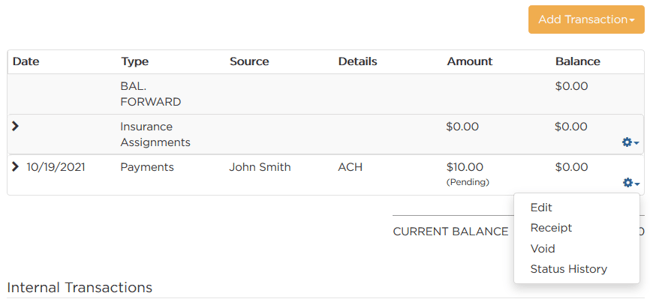
Select the gear drop-down next to the payment.
Click Void.
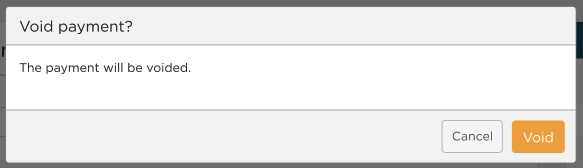
Click Void again to confirm.
Refund a payment
Issue a full or partial refund to the card or account used for the original payment.
Locate the payment on the Payments & Adjustments page.
Select the gear drop-down next to the payment.
Choose Refund.
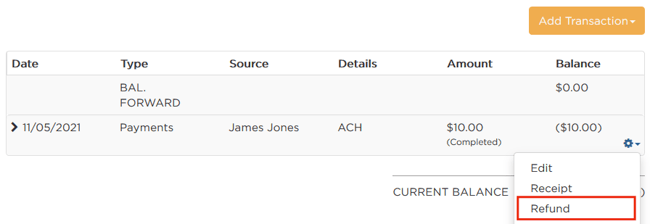
Review the details and click Refund.
Update the Refund Amount if issuing a partial refund.
Click Refund again to confirm.
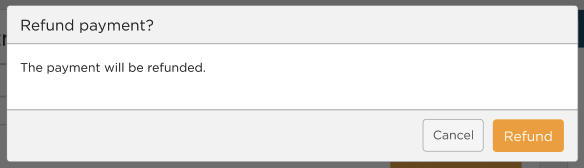
Now, the status should change to Refunded.
Deluxe releases refund funds immediately, but the cardholder’s bank may take longer to post the refund. Most banks post refunds within 3–5 business days.
Deluxe releases refund funds immediately, but the cardholder’s bank may take longer to post the refund. Most banks post refunds within 3–5 business days.
View payment status history
Status History shows the date and time of each payment status.
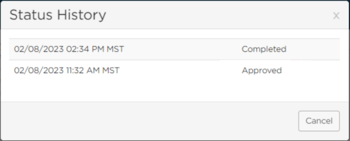
Locate the payment on the Payments & Adjustments page.
Select the gear drop-down next to the payment.
Choose Status History.
Deluxe settles batches daily at 3 PM CST / 4 PM EST. A payment processed after that cutoff appears in the next day’s batch. Use Status History to see the payment’s processing time.
Frequently asked questions
What happens when a card is declined? Deluxe sends an email immediately when there is an issue with a payment. Passare also displays a confirmation or decline message after processing.
What happens if the card has a daily charge limit? Passare displays an error message if you attempt to process an amount that exceeds the card’s daily limit.
How are errors displayed? Passare displays the actual error message rather than an error code that must be cross-referenced.
How are chargebacks handled? The funeral home receives chargeback notifications and must manually update Passare as needed. The Deluxe chargeback fee is $25, whether you win or lose the chargeback.
Need help? Email us at support@passare.com or call (800) 692-5111.
Or call Deluxe support at (844) 898-0341.