
Want this integration? Fill out this quick form and we'll start setting things up for you.
Jump ahead to
Overview
Sync case financials from Passare directly to QBO as journal entries.
It includes data from:
Checks and Ledger data can be excluded from the sync if needed. For help with your settings,
reach out to our Support team.
Like other integrations, data is pushed from Passare and pulled into QBO.
Once a trigger occurs, Passare pushes data to QuickBooks and then pulls it automatically or manually, depending on your organization's settings.
For example, if you sign the Goods & Services page (trigger), that data will:
-
-
Immediately appear in QBO (automatic), or
-
Appear in Passare's Integrations log for review & syncing (manual)
-
Triggers
The following chart lists what data syncs to QuickBooks and how it's triggered.
| Passare data | Trigger |
| Goods & Services | When G&S is signed, re-signed, or the sign date is changed |
| Cash and check payments | When the payment is created, deleted, or updated |
| Credit card payments | When the payment status is Complete |
| ACH payments | When the batch is settled, chargeback occurs, or is refunded |
| Insurance assignments | When funds are marked as Received |
| Interest, refunds, adjustments | When a transaction is created, deleted, or updated |
| CLAIMCHECK | When the assignment is marked as Complete |
| Checks | When a check is printed, reprinted, or voided |
| Batch payments | When a batch is processed |
| Ledger | When funds are added or removed |
Automatic add to accounting
If your organization has Automatic add to accounting exports turned off, you must click Add to Accounting Export before invoices & payments will sync.
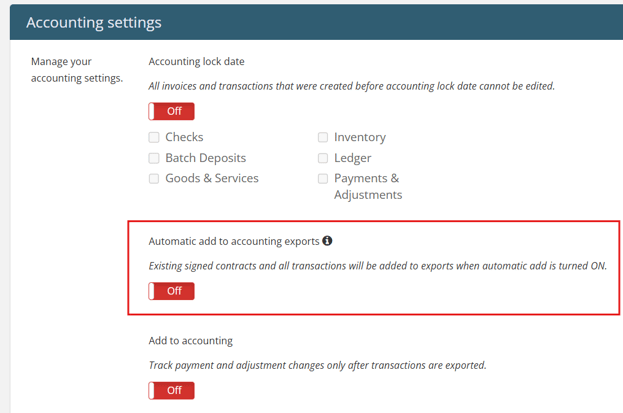
This button is on the Goods & Services and Payments & Adjustments pages and is only visible if the setting is off for your organization.
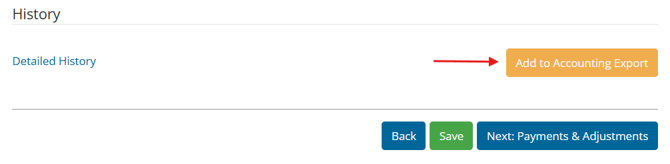
Once the Add to Accounting Export button is clicked in a case, all subsequent data from that page automatically syncs.
Automatic vs. manual syncing
Automatic sync
If Enable auto-sync is on, triggered data will flow straight to QBO.
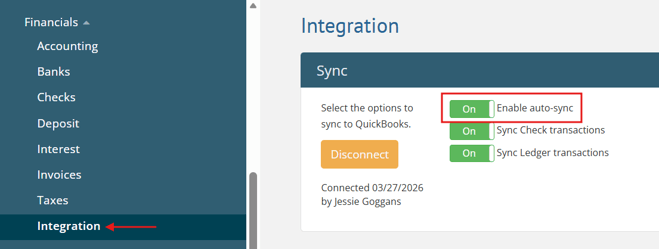
For a fully automatic sync, make sure Auto sync and Automatic add to accounting exports are enabled for your organization.
Manual syncing
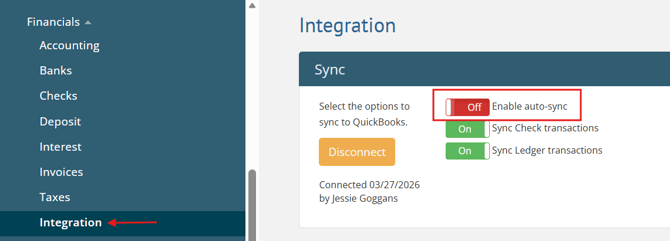
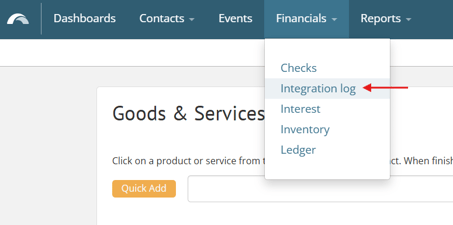
If Enable auto-sync is off, triggered data will first flow to Financials > Integration log.
Entries needing review are under the Pending transactions tab.
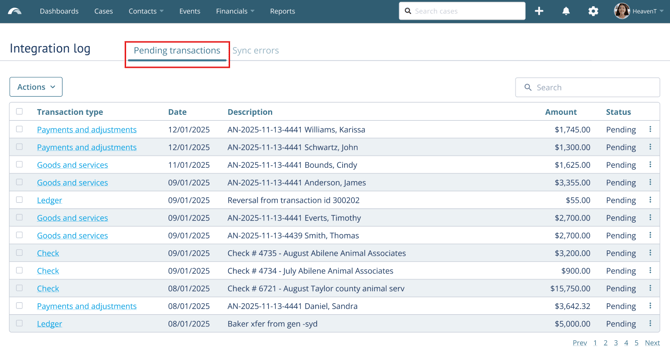
If you have multiple QBO companies connected, all pending transactions will appear here.
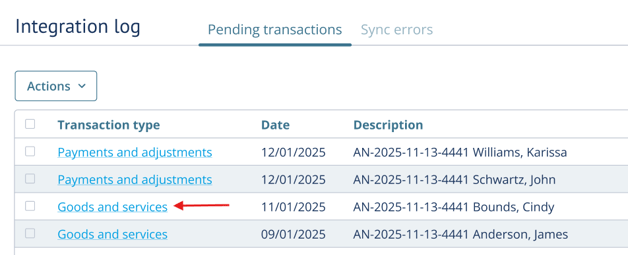
Click on the Transaction type to see more details.
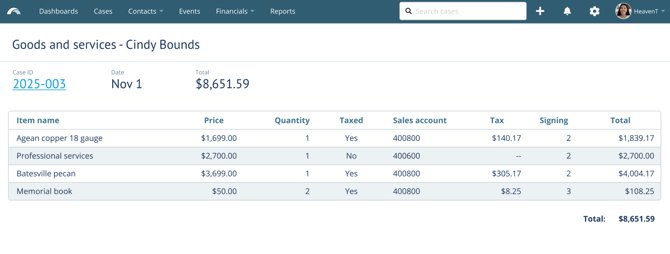
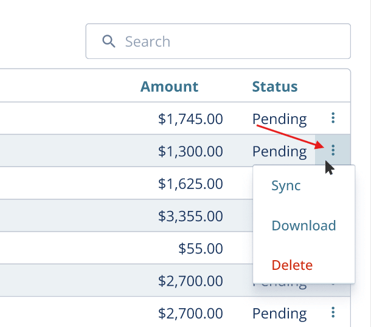
Click the ellipsis next to an entry to sync, download, or delete it from the table.
You can also bulk-select entries and click Actions to sync, download, or delete them all at once.
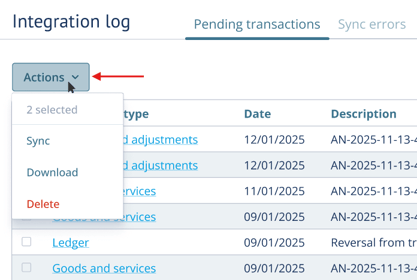
Selecting Download will download data in a CSV, including headers.
Learn how to retry failed syncs.
Sync examples
See examples of financial data syncing from Passare to QBO.
Goods & Services
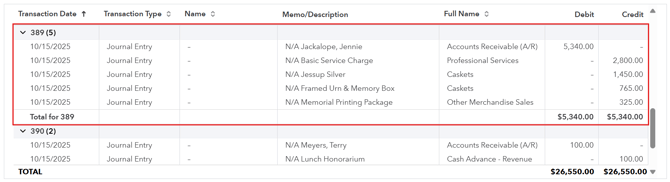
Journal entries are created in QBO when the G&S page is signed, re-signed, or the sign date is edited.
Passare:
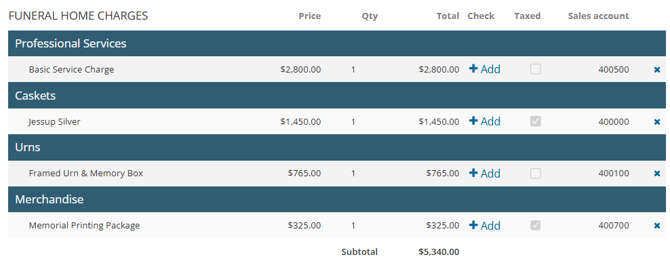
QuickBooks Online:
Payments & Adjustments
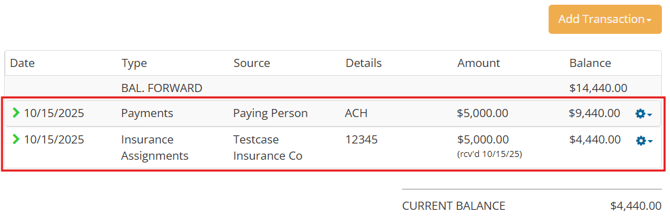
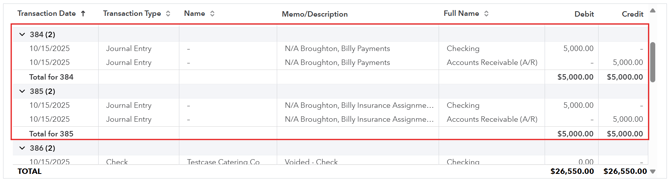
Journal entries are created when transactions are created, deleted, or edited.
Passare:
QuickBooks Online:
Checks
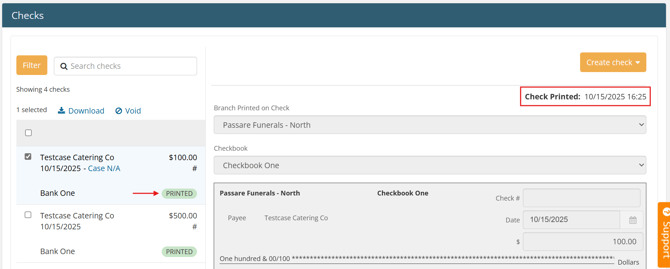
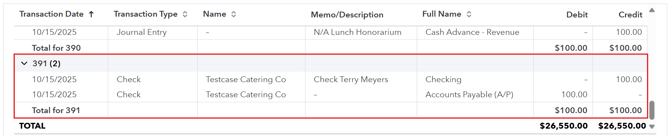
Journal entries are created when a check is printed, reprinted, or voided.
Passare:
QuickBooks Online:
Batch payments
Journal entries are created when a batch payment is processed.
Passare:

QuickBooks online:
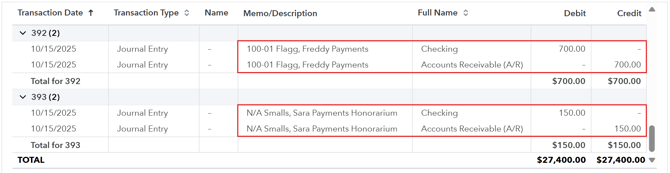
Ledger
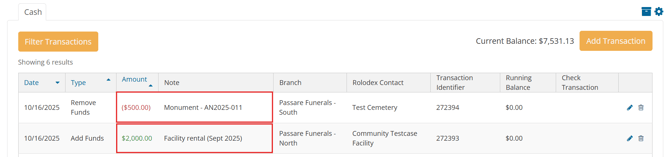
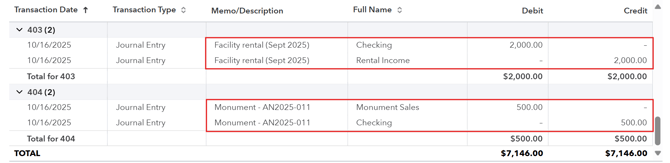
Journal entries are created when funds are added or removed.
Passare:
QuickBooks Online:
Troubleshooting errors
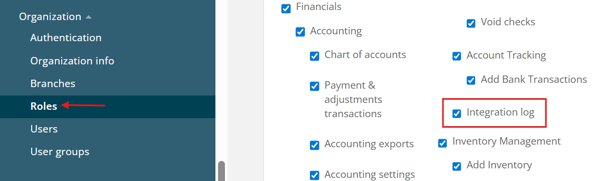
If your user has the Integration log permission, you:
- Receive notifications when a sync fails
- Can review and retry the failed sync
If an error occurs, you will see a notification in the bell icon.
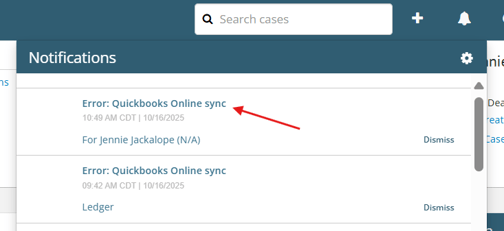
Click the notification or go to Integration log > Sync errors tab to view the error.
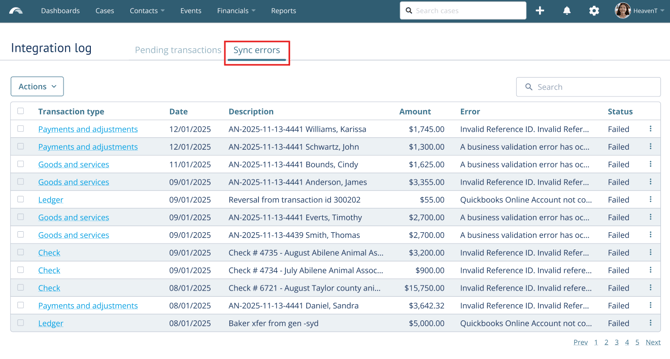
If you have multiple QBO companies connected, all errors will appear here.
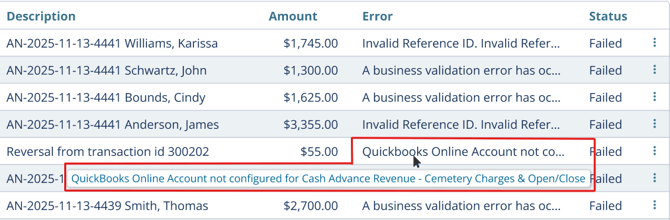
You can hover over an error message to see the full details.
Go fix the issue in Passare, then click the ellipsis icon and select Retry sync.
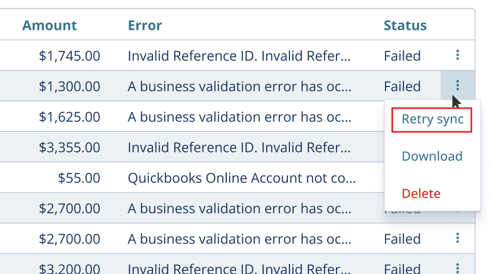
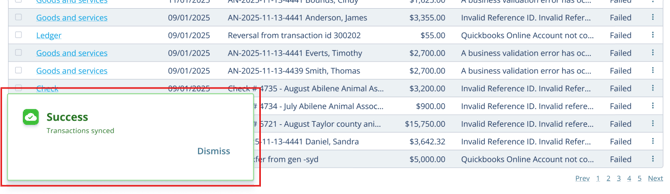
If the re-sync is successful, you will see a green success message and the error will disappear.
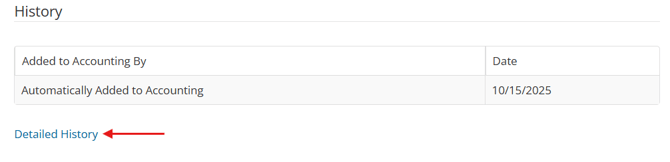
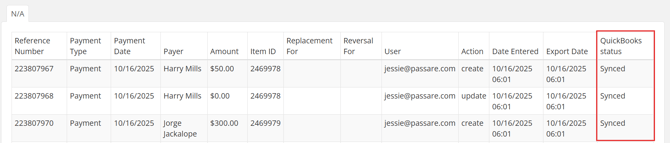
You can see the QBO sync status in Detailed History pages of Goods & Services and Payments & Adjustments.
Record matching
With each sync, Passare will match/create Customer and Vendor records in QuickBooks.
Customers
If synced financials reference a case, Passare will scan QBO customers for an exact name match.
- If it finds an exact match, Passare will create a link between the case and QBO customer.
- If it does not find a match, Passare will create the decedent as a new customer in QBO.
Financials linked to a customer will appear in that customer's record.
Passare: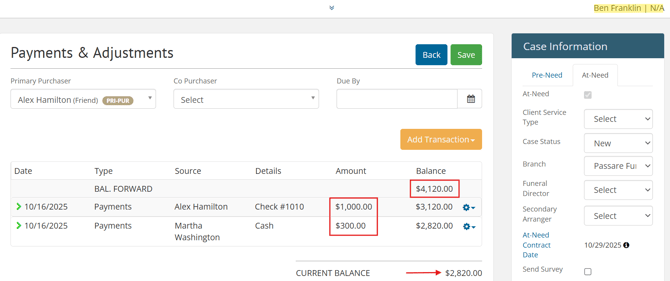
QuickBooks Online: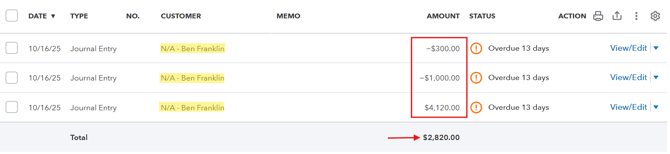
Vendors
If synced financials reference a business, Passare will scan QBO vendors for an exact name match.
-
If it finds an exact match, it will automatically tie the QBO vendor to the Rolodex entry.
- If it does not find a match, it will create a new vendor in QBO.
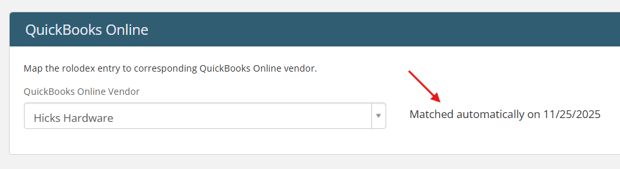
Financials linked to a vendor will appear in that vendor's record.
Passare: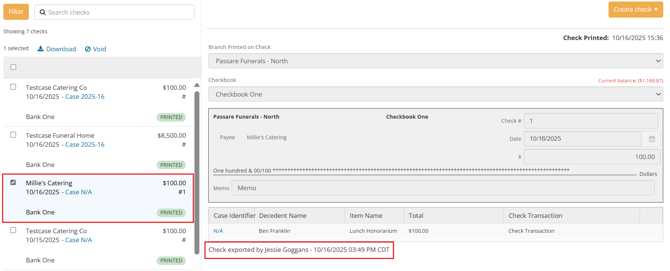
QuickBooks Online: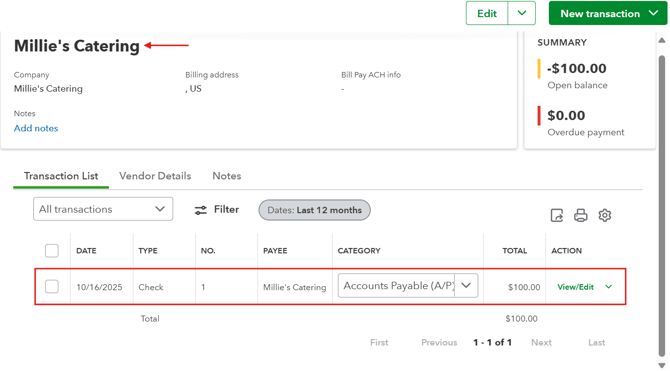
Want this integration? Fill out this quick form and we'll start setting things up for you.
Need more information?
Need Help? Email us at support@passare.com or call 1-800-692-5111.