
Skip to:
Report configuration
These settings will need to be configured in the parent (main) organization. They won't be available in each individual organization.
Go to Settings > Cases > Client Service Types and scroll down to Survey Report Configuration.
From here you can add a survey report and configure your columns.
To add a report, select Add report.
Enter the report Name and Description.
Check the box if you want to include cases without a client service type assigned.
Click Save.
To add columns, click the Add column button from Survey report configuration.
Choose whether you want to Create new column or Use existing columns.
New columns
Under Report, choose which report the column will be added to.
Enter the column Name and Value.
- Name: Column heading that will appear on the report.
- Value: Information that will be pulled from Passare into the report column.

Example: If you want the decedent's address, you can name the column Address and select if you want just the Address or if you want to include the Address, City, State, and Zip.
Click Save.
Existing columns
Under Report, choose which report the column will be added to.
Choose which Column you want to add to the report. The Value will auto-fill. 
Once you add all your columns, you can rearrange the order.
Add as many columns and reports as you need.
Group by Packages
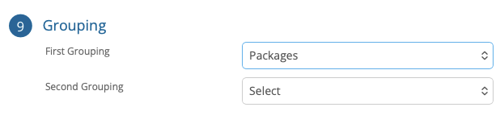
Find this under Reports > System reports > Survey report
To organize your report by price list packages, select Packages from the Grouping dropdown (this requires the Sum of Packages column to be added to your report).
- Alphabetical Order: Results are grouped alphabetically by package name.
- Multiple Packages: If a case has multiple packages, it will appear under the package that was added to the case first.
- No Packages: Cases without an assigned package will be grouped at the bottom of the report under "No Packages."
- Clean Reporting: Packages not currently used by any cases in your filtered results will not appear as empty groups.
Client service types
Go to Settings > Cases > Client Service Types
See which types are Included in Survey Report.
If there are any you want included, select the service type Name.
Check Yes or No under Include in survey report.
Click Save.
Price List Settings
Once you configure the survey report, you'll want to go into your price list to make sure the items will appear in the correct column.
These settings will need to be configured in the parent (main) organization. They won't be available in each individual organization.
Go to Settings > Price list > Price list items.
If you know you want to include certain price list items on the report, you can Filter Items.
Select a price list item Title.
Scroll down to Survey Reports and check the box for the corresponding category.
Click Save.
From there, you can run your report.
For more information, see How to Run & Schedule System Reports.
Need Help? Email us at support@passare.com or call (800) 692-5111!