
📣 This feature is currently available only for Passare Premium customers. To get set up, contact your Premium support representative, or email julie.hofmann@passare.com or madison.scott@passare.com to upgrade your account.
Jump ahead to
- Download the audio file from desktop
- FAQ & Troubleshooting
✋ Before you begin: You must have the “Recordings” permission enabled for your role, and app version 3.10.0 or later.
Set up AI Notetaker
Give your team access to AI Notetaker. If you're the Admin, open Settings in the desktop version of Passare, then click Roles under Organization.
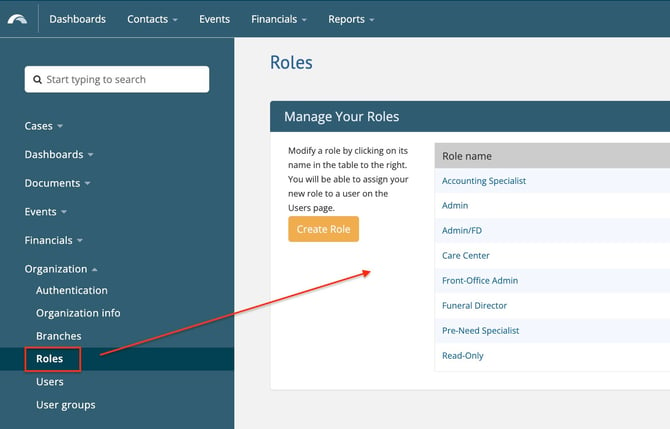
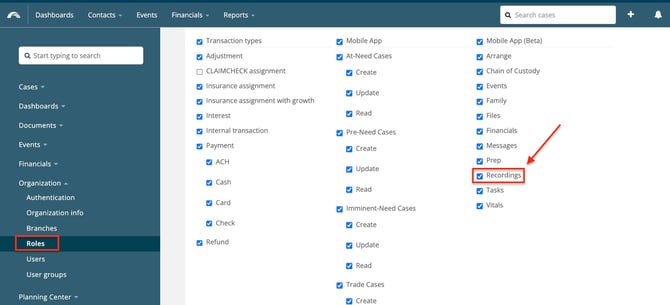
Select the role and check the Recordings permission. If you do not see this option, reach out to support to make sure the feature is enabled for your organization.
Start a new recording
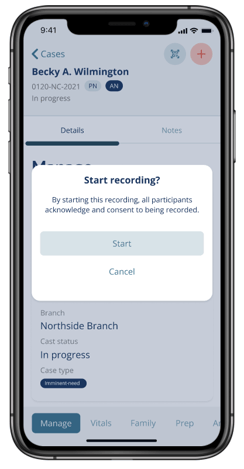
⚠️ IMPORTANT: You are responsible for obtaining verbal consent from all parties before recording.
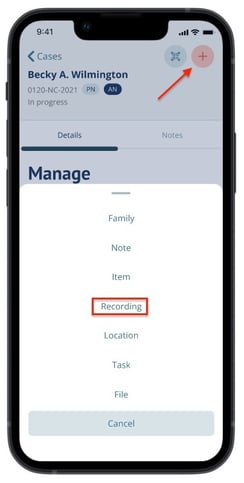
Open a case in Passare Mobile. Tap the plus (Add) button and Select Recording.
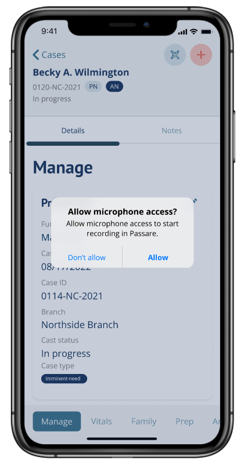
You'll be asked to enable microphone access the first time you use AI Notetaker. When prompted, allow the app to access your microphone.
💡If you previously denied access, enable microphone permissions in your device settings.
Tap Start to begin recording.
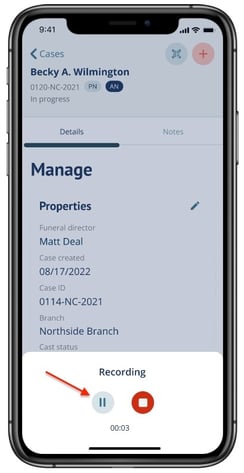
Use the controls to pause, resume, or stop the recording as needed. If interrupted, such as by a phone call, the recording will pause, and you can resume once ready.
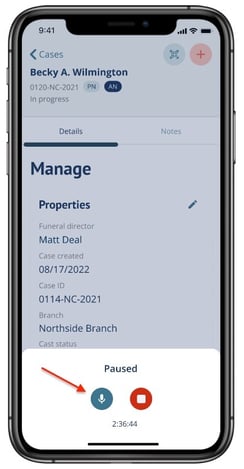
To resume the recording, tap the microphone.
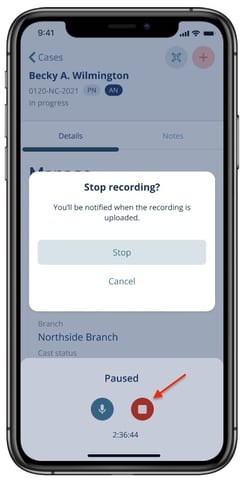
When finished, tap the red Stop button. The recording will upload automatically to the Files page of the case.
⚠️ IMPORTANT: Once a recording reaches 180 minutes, it will pause, and you will see an alert asking if you'd like to save or resume the recording.
Access and review recordings
Go to the Files page within the case. Find your audio recording in the list. Tap the file to access the recording, summary, and transcript.
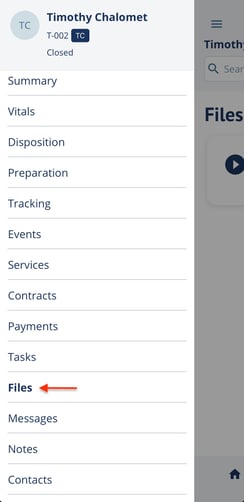
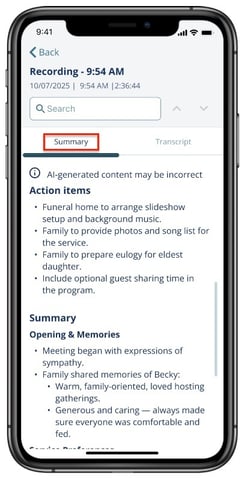
Opening the file will take you to the summary tab.
⚠️ IMPORTANT: Summaries and transcripts are AI-generated and content may be incorrect.
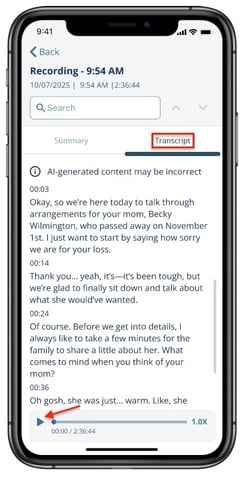
Tap the Transcript tab to view and listen to the full recording. Use the playback controls to listen to the audio.
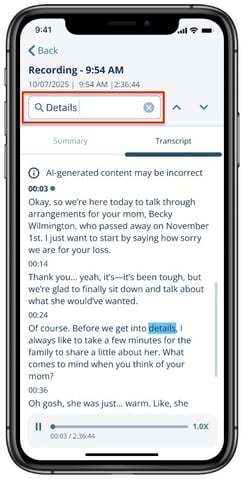
Use the search bar to find keywords and use the arrows to find everywhere it's mentioned in the transcript or summary.
Rename or download the file by tapping the three dots next to it.
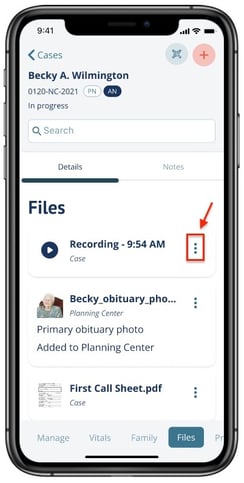
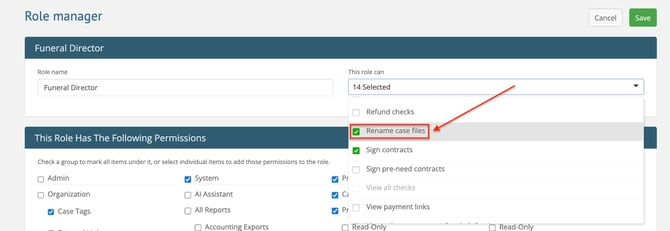
You’ll need permission to rename or delete case files. In the desktop version of Passare, open Settings, go to Roles, and update the role you'd like to have permission to rename files.
Notifications
🔔 You will need Notifications enabled in Passare Mobile to receive Notifications. Click here to learn more.
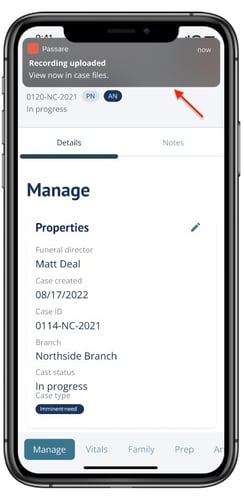
You will receive a notification when your recording has been uploaded and is ready for review. Tapping the notification takes you to the recording's summary.
Download the audio file from desktop
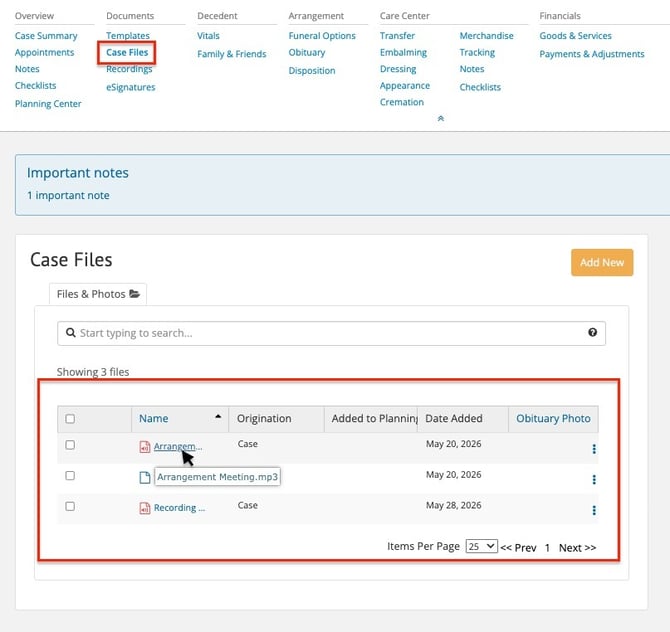
You can download and listen to the recording from the desktop version of Passare on the Case Files page.
FAQ & Troubleshooting
Can I record without Wi-Fi or cell service?
Yes, recording works offline. The audio uploads automatically once your device reconnects to the internet.
What if my phone runs out of storage during a meeting?
If your storage drops to 50 MB or below, the recording will pause and prompt you to free up space. You can resume once you've cleared room.
Can I do other things in the Passare app while recording?
No. The recording screen needs to stay open. You can lock your phone or switch to another app, but you can't navigate elsewhere within Passare during a recording.
Can multiple people record the same meeting?
Only one recording per device at a time. If multiple team members are present, only one person needs to record.
Can I delete a recording?
Recordings can be deleted by Roles with permission to delete case files.
|
Scenario |
What happens |
|---|---|
|
Screen locks |
Recording continues |
|
App goes to background |
Recording continues |
|
Incoming phone call |
Recording pauses — resume when you're back |
|
Headphones unplugged / Bluetooth disconnected |
Recording pauses — resume when you're ready |
|
Passare push notification (and you tap it) |
Recording pauses with a "Stop recording?" alert |
|
Low device storage (at or below 50 MB) |
Recording pauses with a "Storage full" alert; free up space and resume |
|
180-minute time cap reached |
Recording pauses with a "Stop recording?" alert |
|
App crashes, device restarts, or app is force-closed |
If you’re unable to resume the recording, it will be partially recovered automatically so you won't lose everything |
Need more information?
Need help? Email us at support@passare.com or call (800) 692-5111.