
Don't see this feature? Email support@passare.com or call (800) 692-5111 to enable it.
Before you begin, make sure you've set up bank accounts in Passare.
Jump ahead to
Check settings
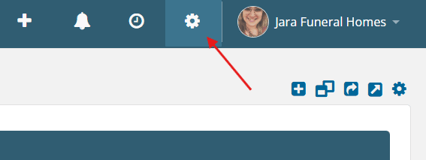
To get started, go to Settings > Financials > Checks.
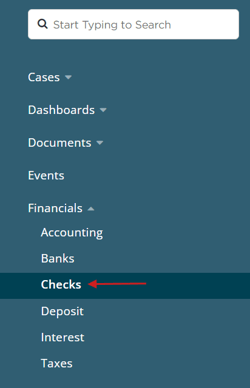
From this page, you can customize the following sections:
Checkbooks
Here, you can manage the bank account(s) you'll write the checks from.
Select Add checkbook.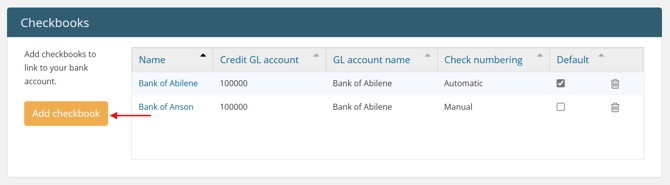
Add in checkbook details, like bank account and what information Passare should print.
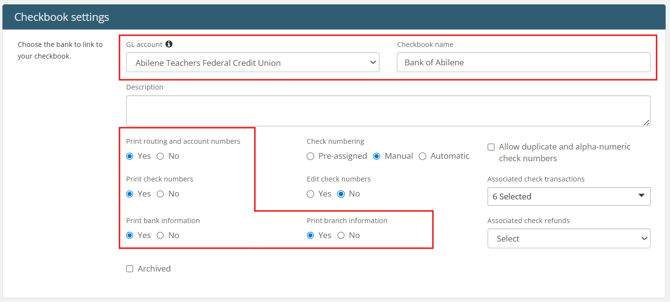
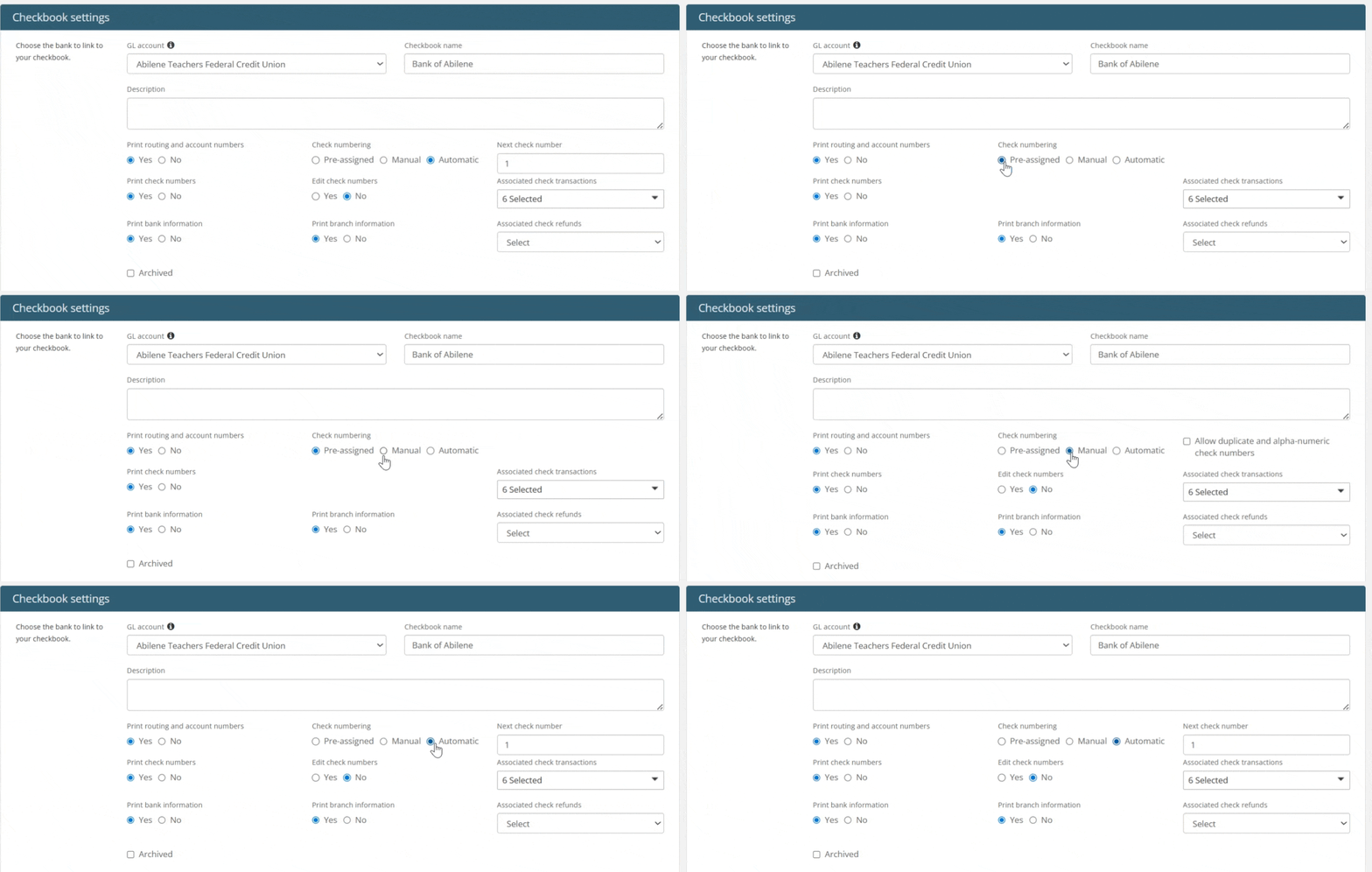
Then, determine how Passare should handle check numbering:
- Pre-assigned assumes the check stock is already numbered.
- Manual assumes the check stock is not numbered and will be manually entered. Optional settings include:
- Allow duplicate and alpha-numeric check numbering
- Make check numbers editable
- Automatic assumes the check stock is not numbered, but Passare will auto-fill the check number. Optional settings include:
- Next check number (auto-numbering will start with this number)
- Make check numbers editable
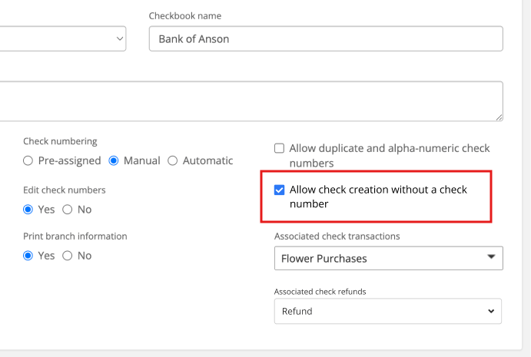
If you need to create checks without a number, select Allow check creation without a check number.
This allows you to initiate a check without a number but still requires it to be added before printing.
This is also where you will select which transactions and refunds are associated with this checkbook.
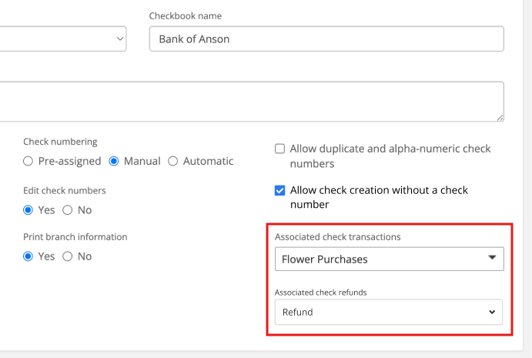
Jump ahead to learn more about check transactions and check refunds.
You can also indicate which users will be notified of activity for this checkbook, like check requests.
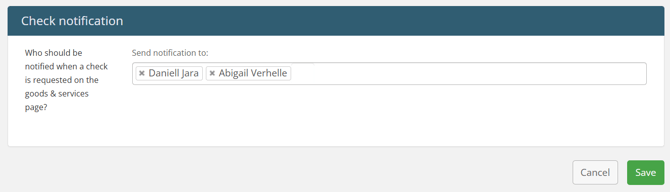
Once your settings are configured, save the page.
Continue this for any other checkbooks you plan to use in Passare.
You can also select a Default bank using the checkbox if adding multiple checkbooks.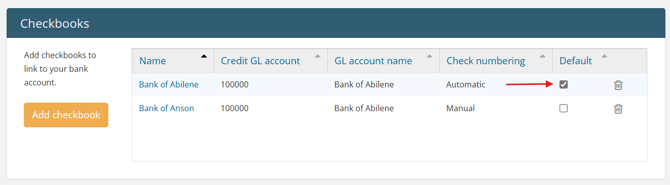
Check transactions
Manage the financial transactions you support for check writing.
Select Add transaction.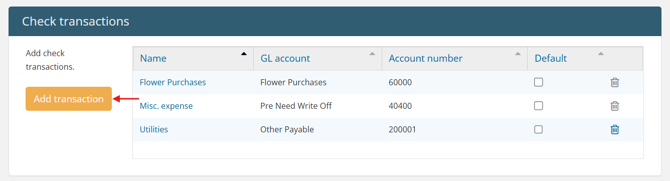
Enter the Check Transaction Name and select the GL Account to associate with the transaction.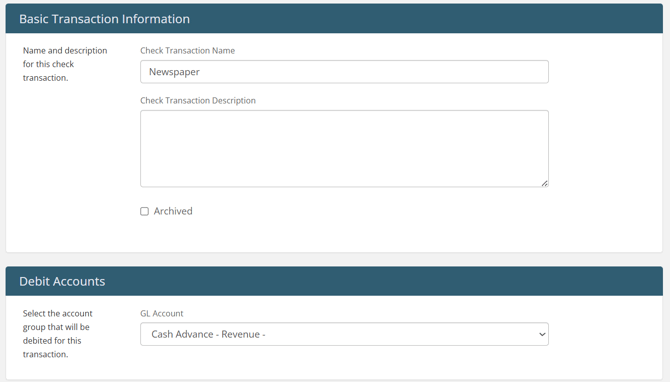
If you need to remove this transaction, check the Archived option.
Save.
Check approvals
To enable Check approvals, toggle on Require check approval.
Then determine the minimum check amount that requires approval in the Check amount box.
If you leave this field set to $0.00, all checks will require approval before printing.

Check design
If you have multiple locations, first mark if all branches will use the same check design or not.
If set to Yes, all branches will share the same template, and individual branch assignments will be ignored. If No, you must configure template visibility per branch.
You can also choose to have the Rolodex entry name listed as the payee.
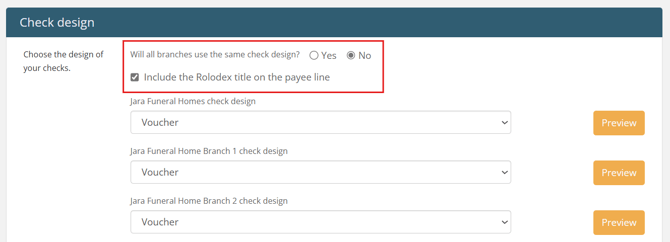
Next, use the check design dropdown to select the style of check.
Use the Preview button to download an example.
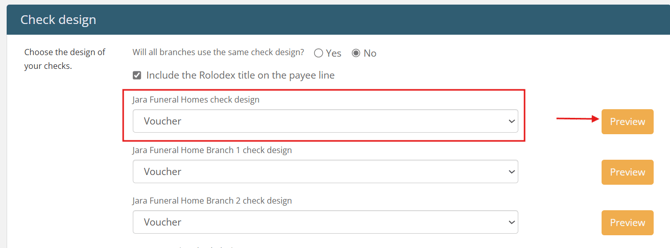
If you're having issues aligning Passare's check design with your check stock, contact our Support team for help.
Check refunds
To write refund checks, you first need to tie a checkbook to the refund transaction. This tells Passare what GL code to use when you are exporting this check.
First, click into the checkbook you would pay refunds from.
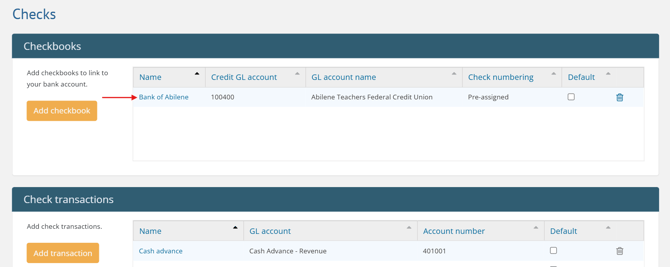
In the Associated check refunds dropdown, select the correct Refund transaction.
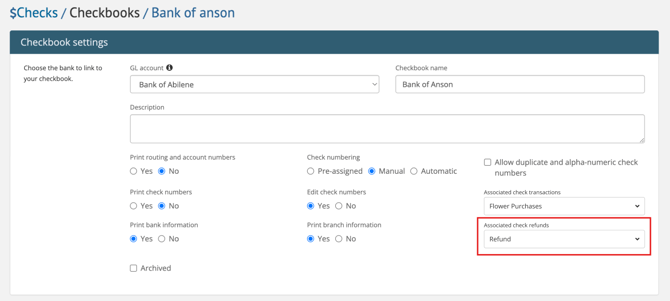
This may be disabled if the Refund credit account doesn't match the Checkbook GL account, which is required.
Only one Refund transaction can be tied to a checkbook. If you plan to write refunds from multiple GL codes, you will need separate checkbooks created.
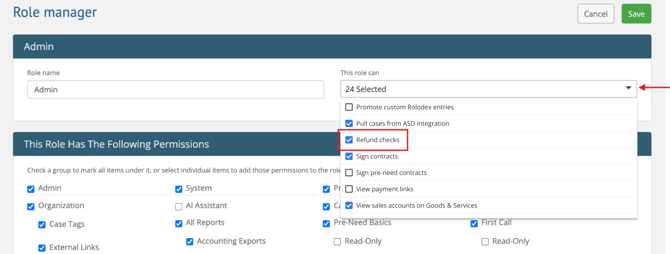
Lastly, make sure that whoever will create check refunds has the Refund checks permission on.
Price list
Determine which price list items you can generate a check for.
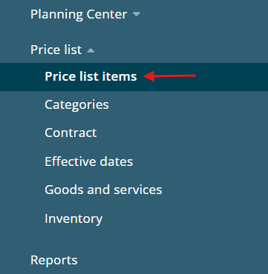
Go to Price list > Price list items.
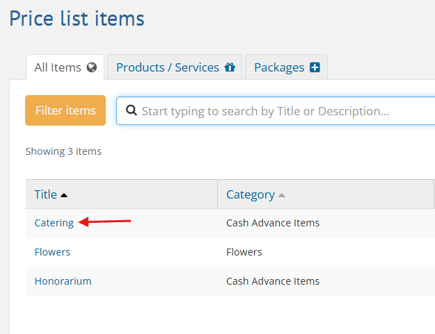
Click into an item.
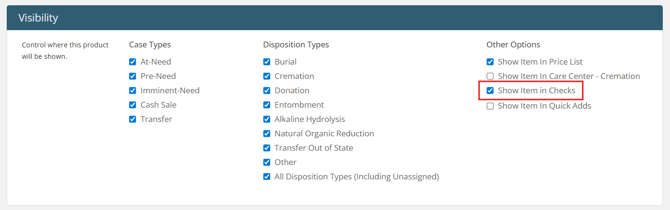
Under the Visibility section, check the option for Show Item in Checks.
Save.
Permissions
Give users different access to Checks based on their role.
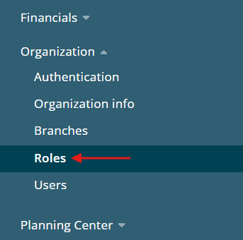
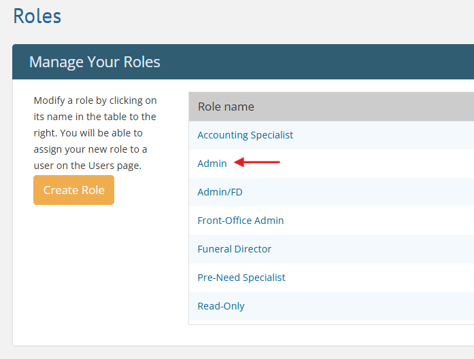
Go to Organization > Roles.
Select a role to edit.
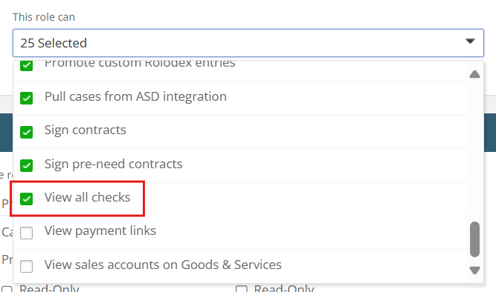
Here are the available permissions for Checks:
- This role can > View all checks
- When checked, this allows a user to view all checks for the organization
- When unchecked, this only allows a user to view their checks
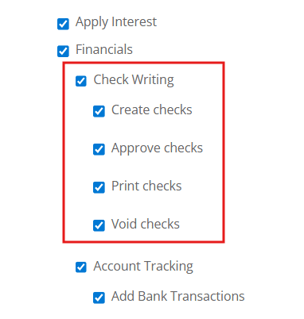
- System > Check Writing checkboxes
- Check Writing - Shows/hides access to Financials > Checks page
- Create checks - Shows/hides access to Create button on Checks page
- Approve checks - Shows/hides access to Approve button
- Print checks - Shows/hides access to Print button
- Void checks - Shows/hides access to Void button
Create, approve, print, and void permissions correlate to these actions on the Checks page:

Users can edit any check they can access if it is not yet approved, printed, or voided.
Learn more about our Check approvals feature.
Need more information?
- Write checks from Passare
- Manage checks with Check approvals
- Set up Financials
- Reporting & accounting for Checks
Need Help? Email us at support@passare.com or call (800) 692-5111!