
Assign branches to a template
Navigate to the template list: Settings > Documents > Templates
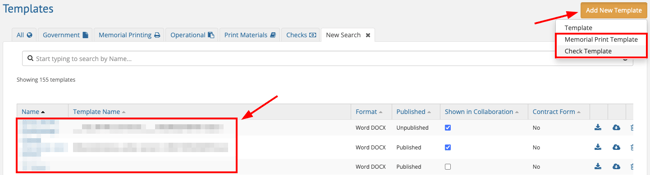
Click the Add New Template button, or click an existing template to edit.
Locate the Branch dropdown next to the Template Name.
Use the multi-select menu to check the branches that should have access.
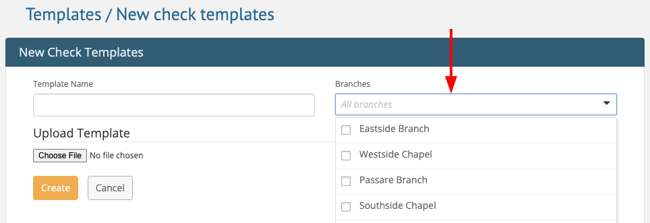
Click Create (or Save if you're editing an existing template).
What happens when a Branch is removed?
- Visibility — The template will immediately disappear from the selection dropdowns for users logged into that branch.
- Active usage — If a branch is removed from a template it is currently using (e.g., in their default Check Design), the template will be cleared. An admin must go to Settings and select a new available template.
Need more information?
- Write checks from Passare
- Manage checks with Check approvals
- Set up Passare Checks
- Reporting & accounting for Checks
Need Help? Email us at support@passare.com or call (800) 692-5111!